How do I start a relationship?
Last updated: September 17, 2026
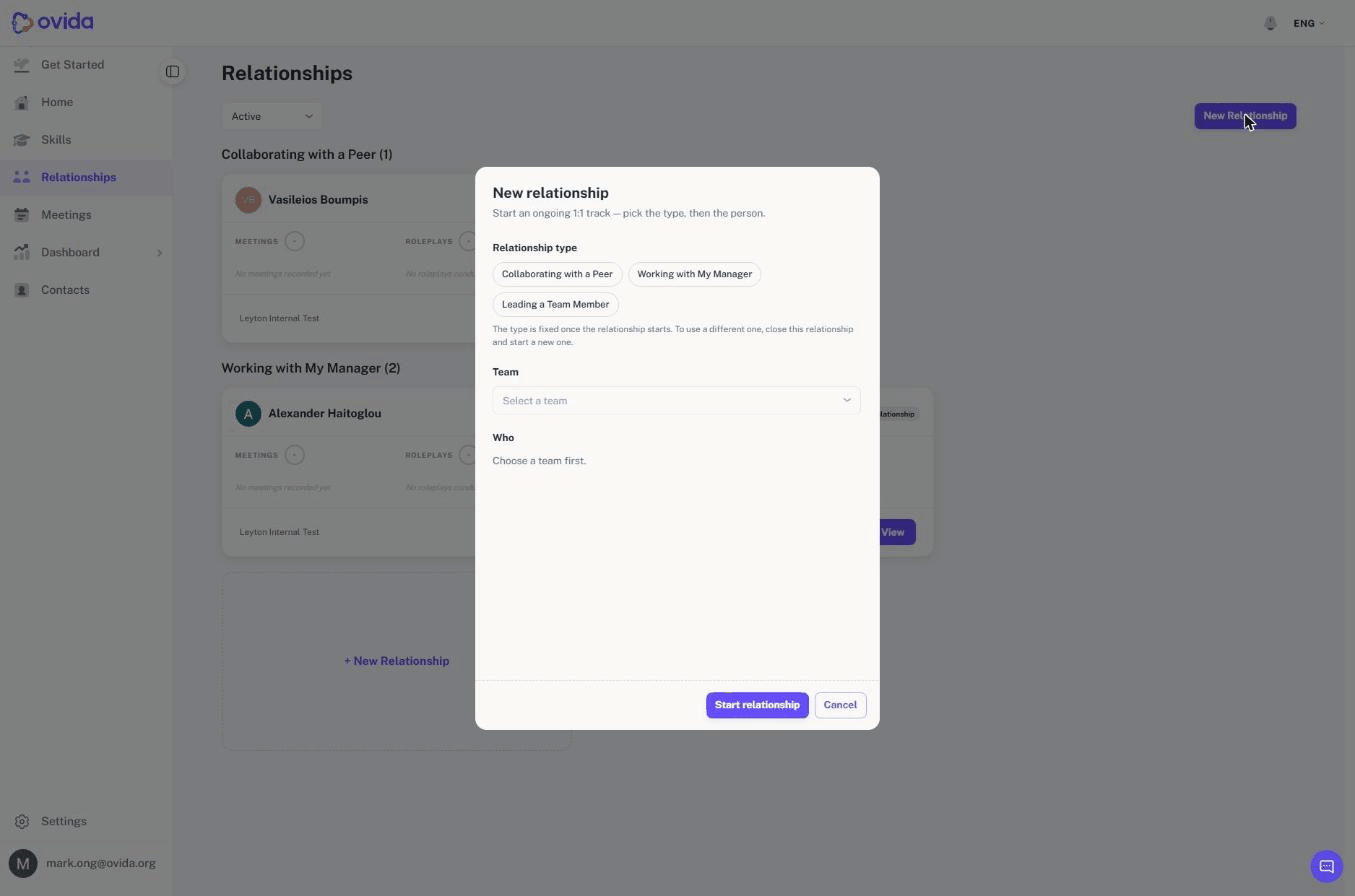
Choose New Relationship, then pick the type, the team and the person, in that order.
Go to Relationships in the left-hand menu.
Choose New Relationship. There is a button in the header and a dashed card at the bottom of the list. Either one works.
Pick the relationship type. The types available are the ones your organisation has set up, shown as buttons you choose from. Where your organisation has only one type, it is selected for you.
Pick the team. Only teams that type applies to are offered, and where there is only one, it is selected for you.
Pick the person from that team.
Choose Start relationship. The new relationship opens straight away and appears on your dashboard under its type.
The type cannot be changed later
You choose the type once, and it stays. If someone's role changes, for example a peer becomes your manager, close the existing track and start a new one under the new type. The history on the closed track is kept.
Changing the type while setting a relationship up clears the team and person you had picked, because the teams on offer depend on the type.
One active relationship per person, per team
You can hold one active relationship with a given person in a given team at a time. If you already have one, that person appears in the list already marked rather than hidden, so you can see why they are unavailable.
Two things follow from this:
Close a relationship and that person becomes available again, under any type.
The rule is per team. If you work with someone in two teams, you can hold a track with them in each.
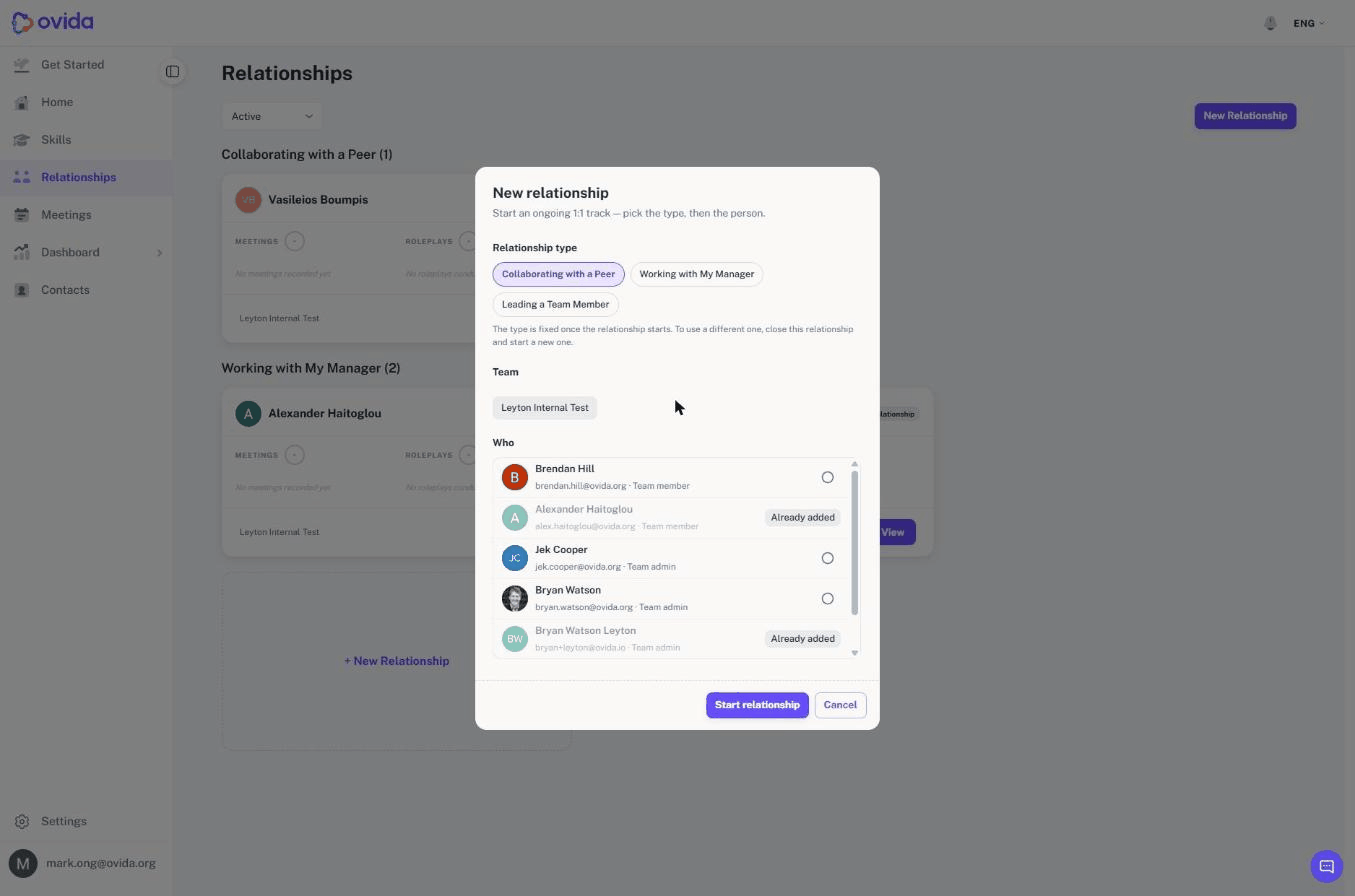
⚠️ Reopening a closed relationship fails if you already have an active one with that person in the same team. Close the active track first.
Who you can choose
You choose from the members of the team you picked. You cannot start a relationship with someone who does not have an Ovida account, and you cannot start one on someone else's behalf, whatever your role. Relationships are always your own.