How do I share a Skill I'm working on?
Last updated: June 26, 2026
Share an active Skill with someone on your team so they can follow your progress, give feedback, or collaborate on your practice.
ℹ Sharing is available only to users with access to the Skills feature.
Skill development doesn't have to be a private journey. Sharing a Skill is useful when you're working with a coach, in a development programme, or just want feedback from a trusted teammate.
A note on teams and sharing
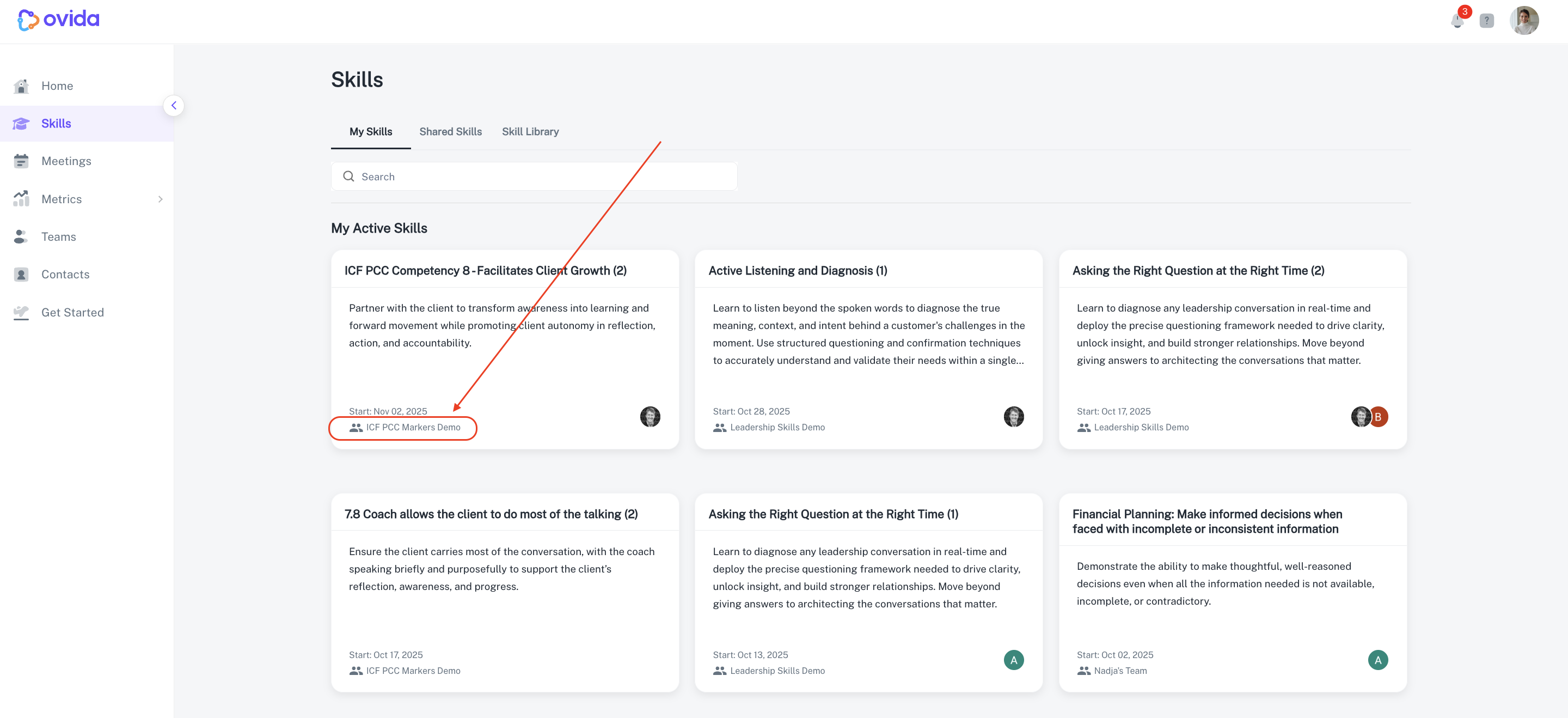
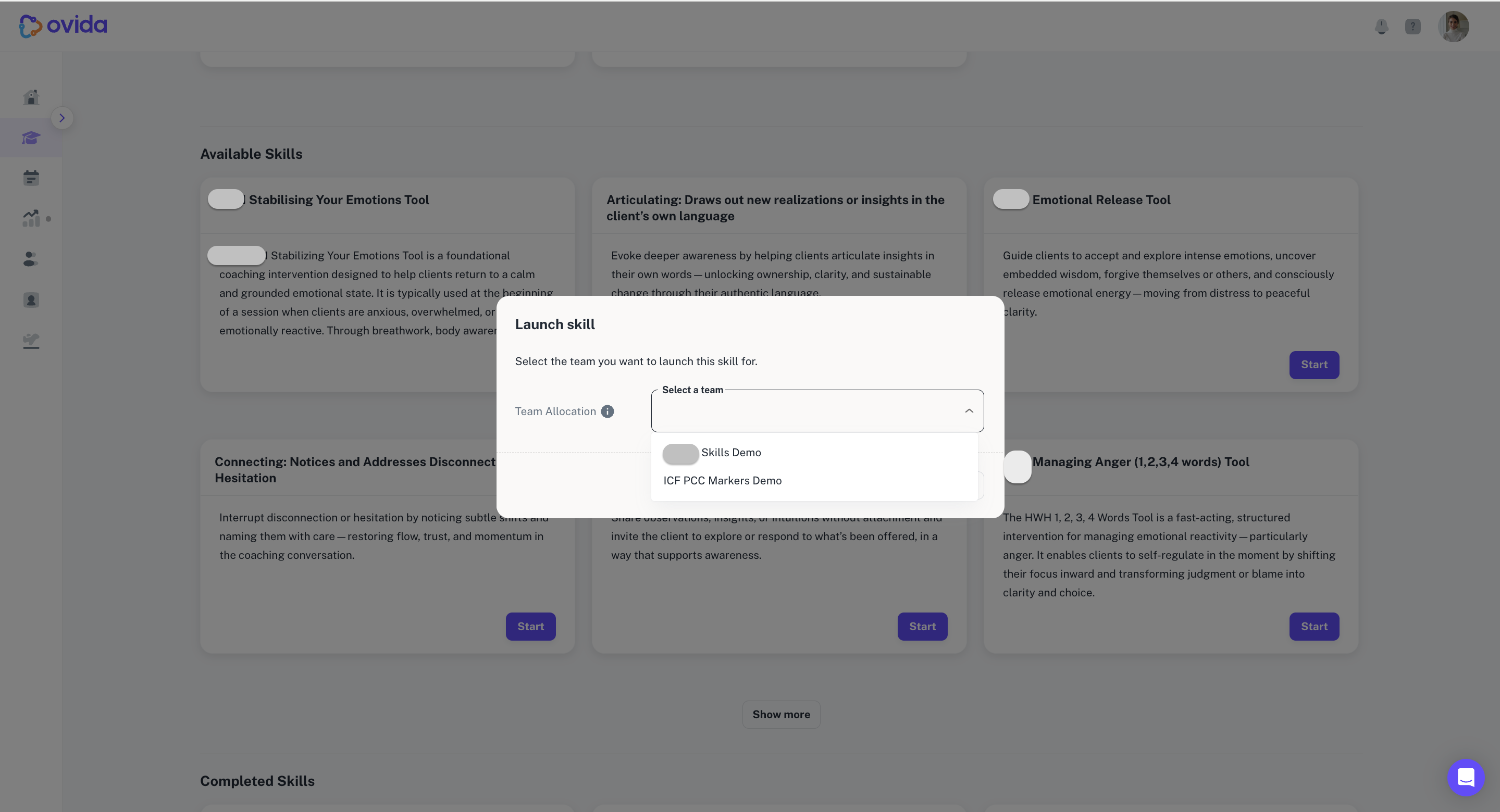
A Skill can be assigned to more than one team. When you start a Skill, you choose which team it's linked to. Once started, you can only share that Skill with members of that team.
The team association is always visible on the Skill, so you can see at a glance who you can share it with.
How to share a Skill
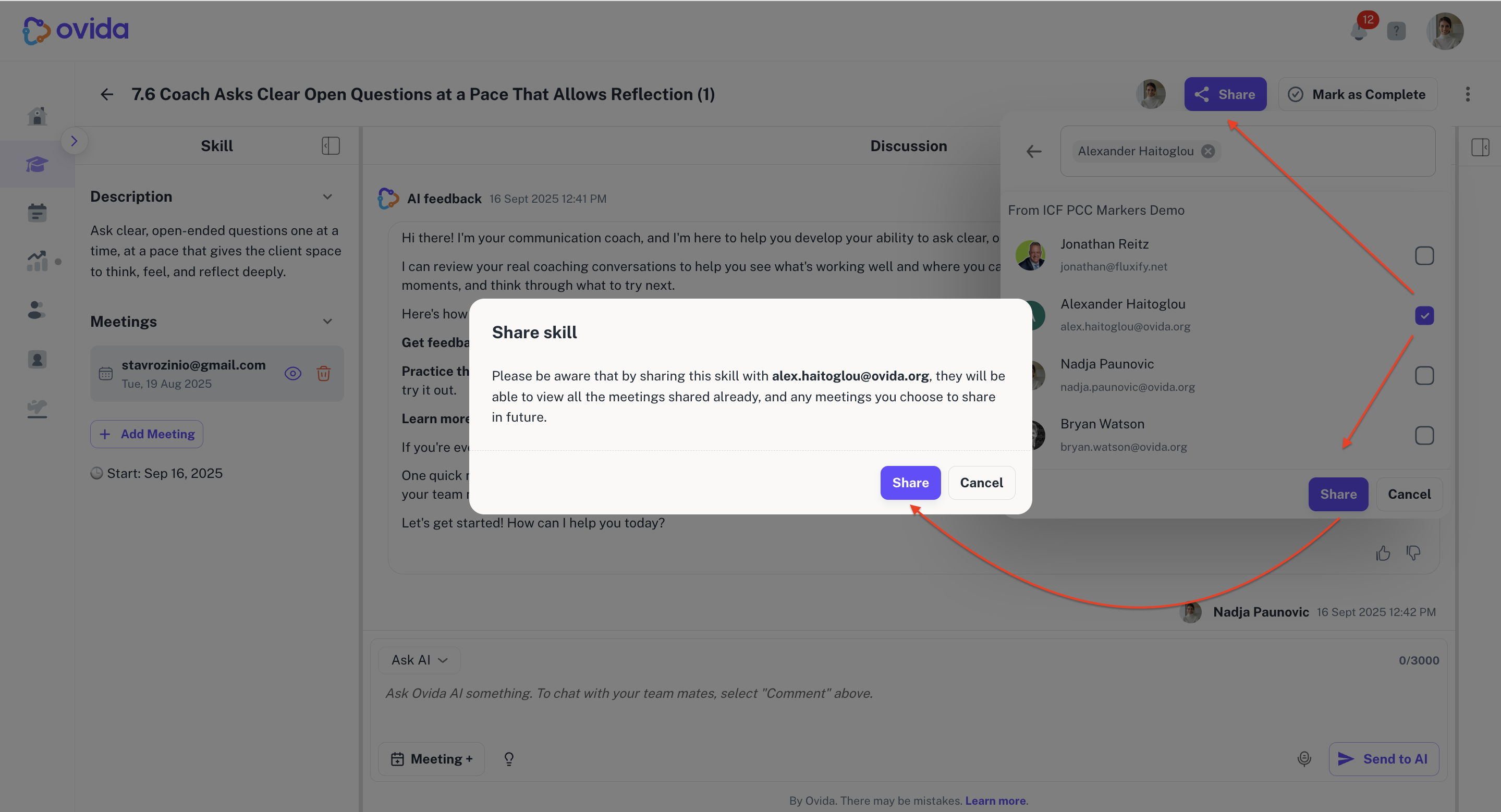
Open the Skill you're working on.
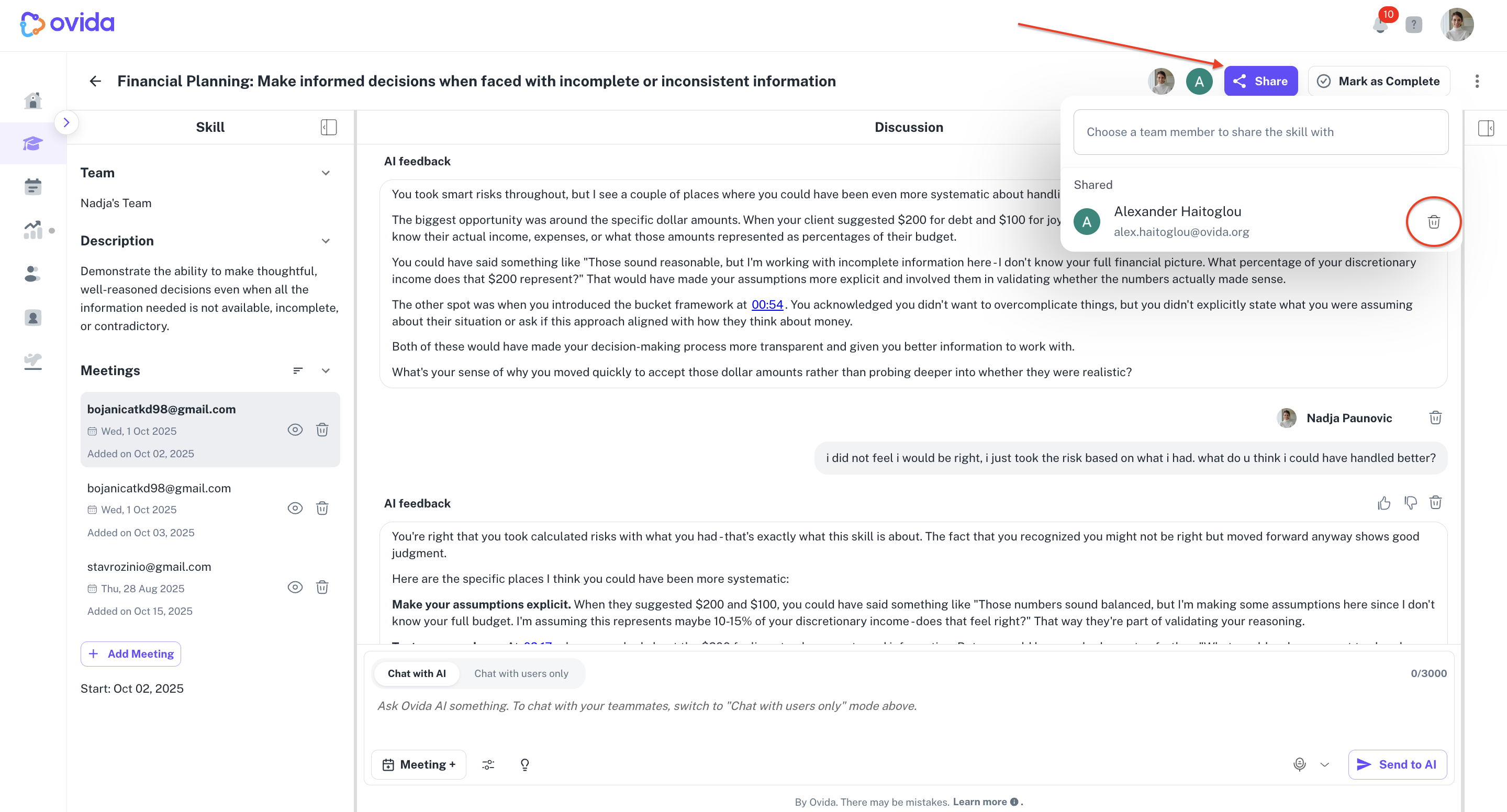
Click Share in the upper-right corner.
Select the team member you want to share with.
Confirm.
When you share a Skill, a note is added to the Skill's discussion thread to record it, for example "Priya shared this skill with Sam". The note looks different from normal chat messages so it is easy to spot, and you can hover over it to see the date and time it happened.
What the shared user can and can't see
Sharing a Skill grants access to the Skill's chat content and rubric. It does not automatically grant access to your full meeting recordings.
Chat content from the Skill: the shared user can see this, including any excerpts from meetings you've chosen to share.
Meetings they joined as a guest or had observer access to: they can view the full meeting (video, transcript, related data). This is access they already had.
Meetings they did not join: they can't see the meeting details, even if the meeting is linked to the Skill. They can request permission from the meeting host, who can choose to grant or deny.
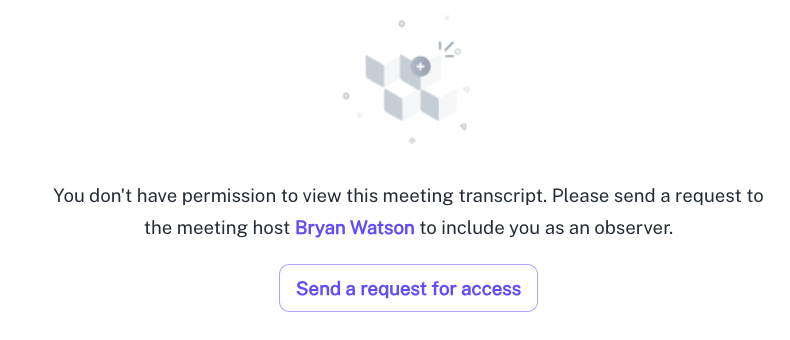
💡 Sharing a Skill doesn't override meeting-level privacy. You stay in control of what Skills and excerpts you share. Meeting hosts stay in control of full meeting access.
How to stop sharing
Click the Share button on the Skill, then click the trash icon next to the person you want to remove.
Where your shared Skills live
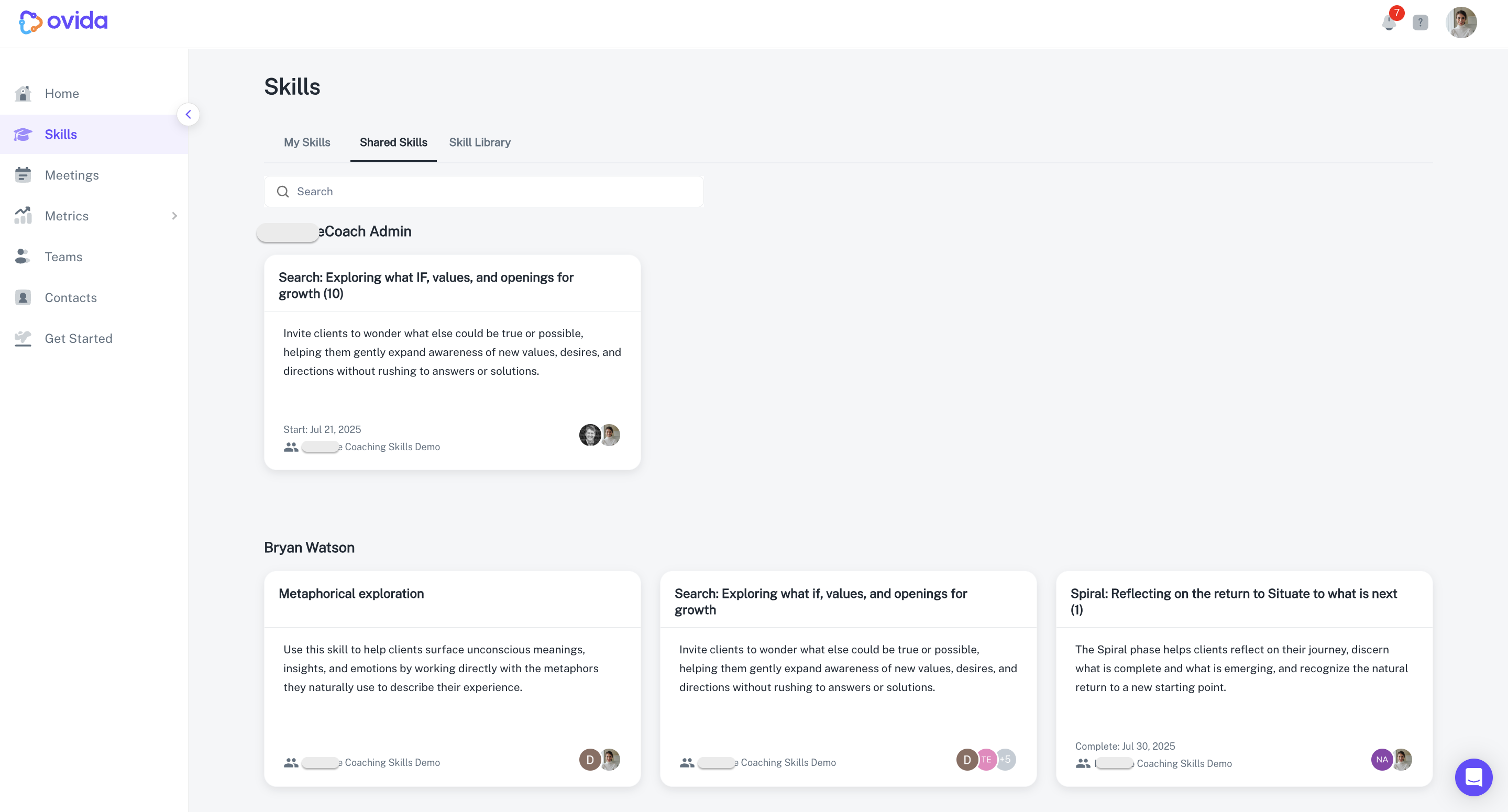
The Shared Skills space shows everything you've shared and who has access.
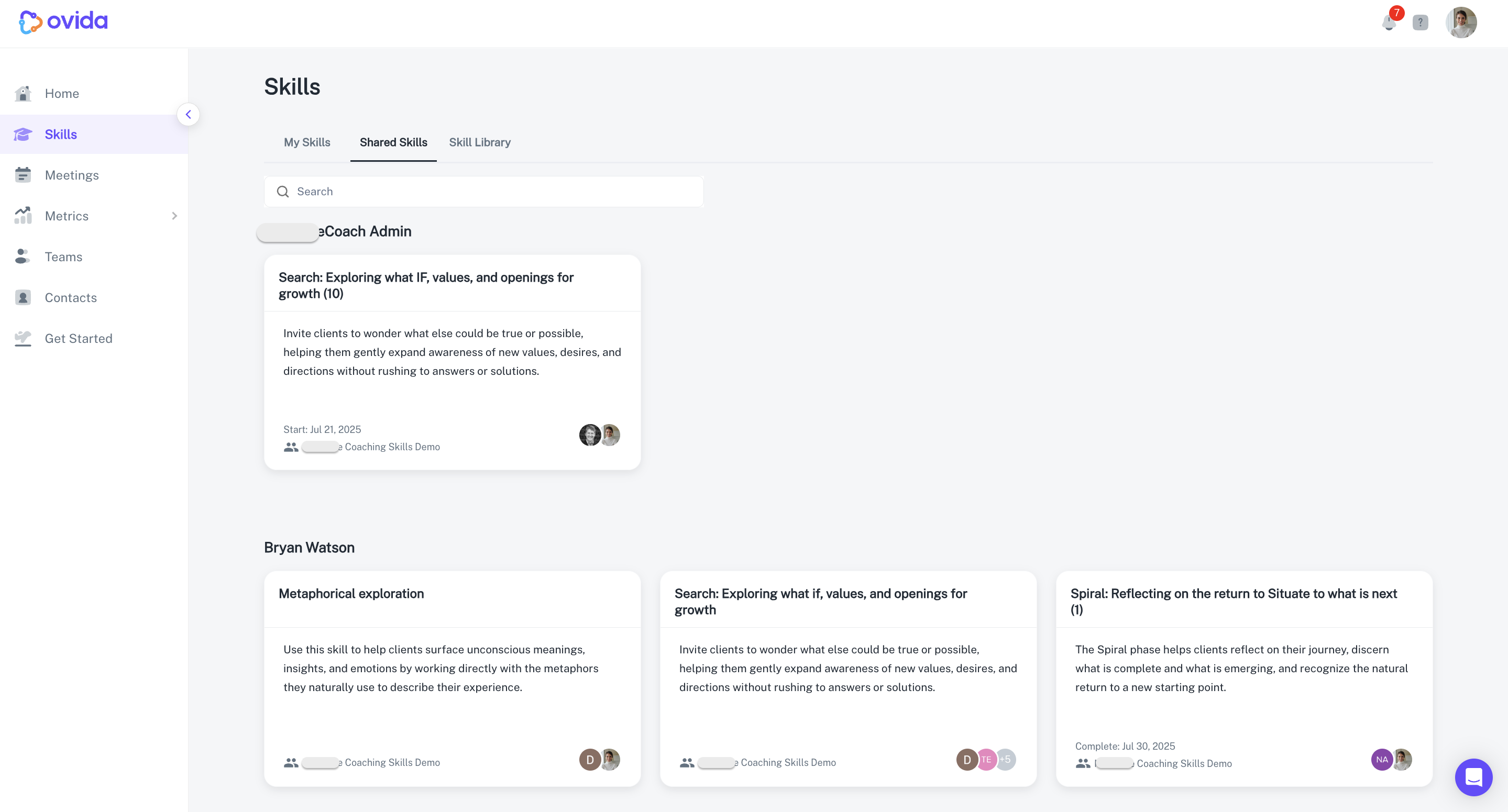
You can also see who has access from the My Skills page. The lower-right corner of each Skill card shows icons for each person you've shared with. Hover for the person's name.