Where can I see who changed access and activity settings?
Last updated: August 27, 2026
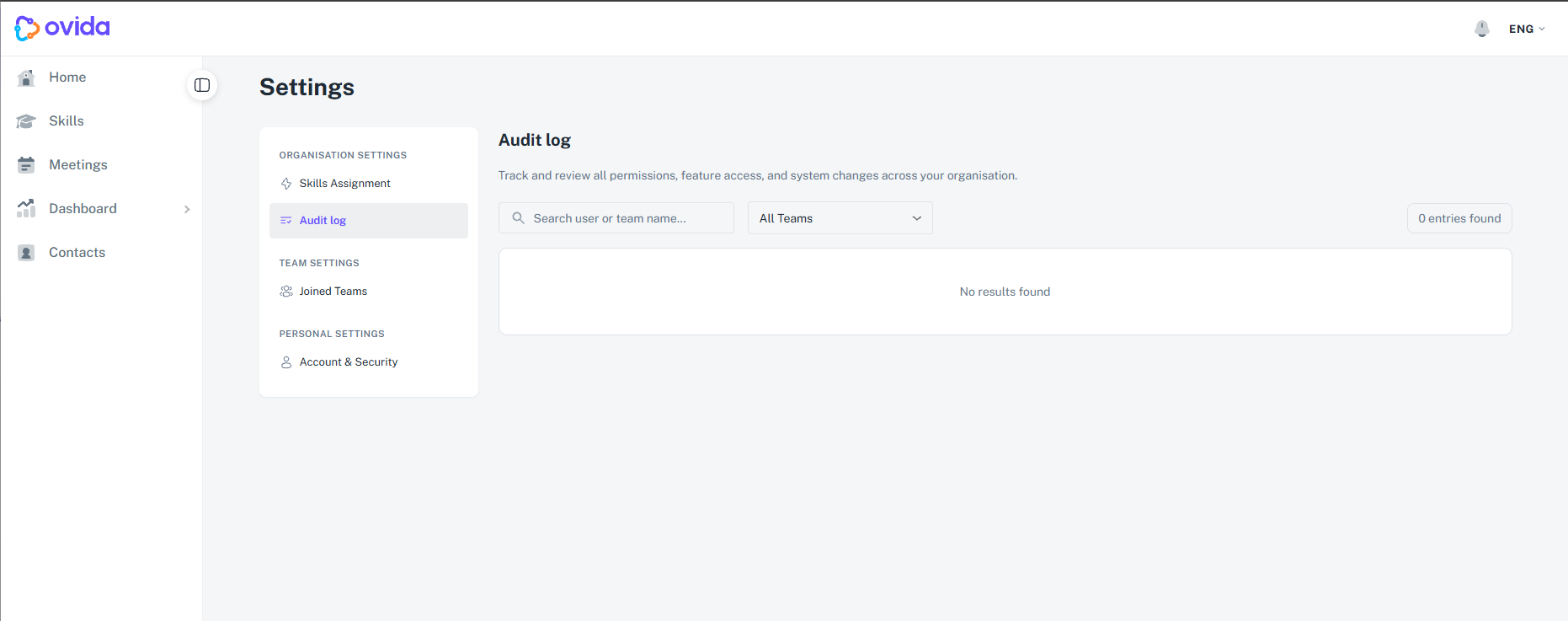
Organisation admins have an Audit Log page under Organisation Settings. Team owners and admins have an Audit Log tab on their own team page.
Where to look
If you have an organisation-level role, open Organisation Settings in the sidebar and select Audit Log, below Skills Assignment. This covers the whole organisation.
If you are a team owner or team admin without an organisation role, open your team and select the Audit Log tab at the end of the team's tabs. This covers that team only.
What you can see
An organisation admin sees every entry: changes to what the organisation as a whole is allowed, changes to any team, and changes to any member's access. The team filter lists every team, and search covers every person and team in the organisation.
A team owner or admin sees only entries for the team they are viewing, which covers members joining and leaving that team and activities being switched on or off for it. Organisation-wide changes and other teams' entries are not shown, and the team filter is fixed to the current team.
Reading an entry
Each entry has five parts:
Who made the change. A colleague appears by name. A change made by Ovida on your behalf appears as Ovida Support with the staff member's name, marked with a headset icon, so it is clear it was not one of your own admins.
What they did, for example activity enabled, activity disabled, access disabled or validity updated.
The level it applied at, shown as Org, Team or Member.
A description, for example "Enabled 'Live audio' for Sales Training", "Set access to Inactive for David Park", or "Set active until 30 Sep 2026 for Nadia Osei".
The date and time.
Searching and filtering
Search by a person's name to find both changes they made and changes made to their access. Search by a team name to see everything affecting that team. Use the team filter to narrow to one team.