How do I assign skills to teams?
Last updated: September 1, 2026
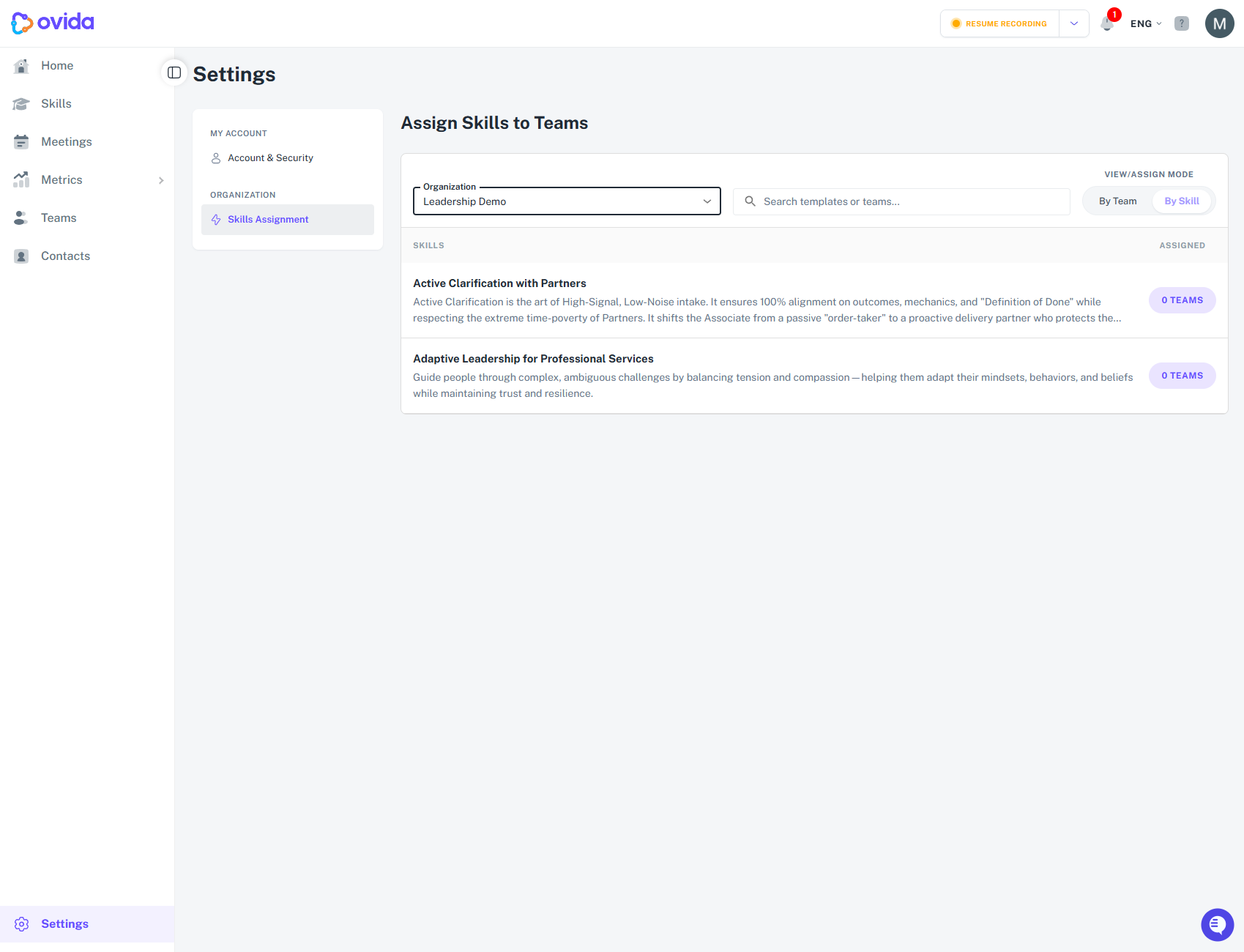
Open Settings, go to Skills Assignment, then click a skill's team badge to choose which teams it applies to.
Skills must be explicitly assigned to teams for students to see them—simply enabling the Skills toggle is not sufficient.
If you own or administer a team, you can assign skill templates to your teams from the Settings area.
Here's a video guide for this article.
Getting to Skills Assignment
Click Settings at the bottom-left of the sidebar. In the Settings menu, under Organization, click Skills Assignment. This opens the Assign Skills to Teams page.
Choosing your view
At the top-right of the page, View/Assign Mode lets you switch between By Team and By Skill. You can also pick an organisation from the Organization dropdown and filter the list with the Search templates or teams box.
Assigning a skill to teams
Each skill row shows a badge in the Assigned column, for example 0 Teams. Click that badge to open the Assign teams to skill template window for that skill.
In the window you can search the team list, sort it with the A-Z dropdown, and tick the box next to each team you want to assign. Teams you have not selected show as Unassigned, and selected teams show as Assigned. When you are happy with your choices, click Save changes. To close without applying anything, click Cancel.
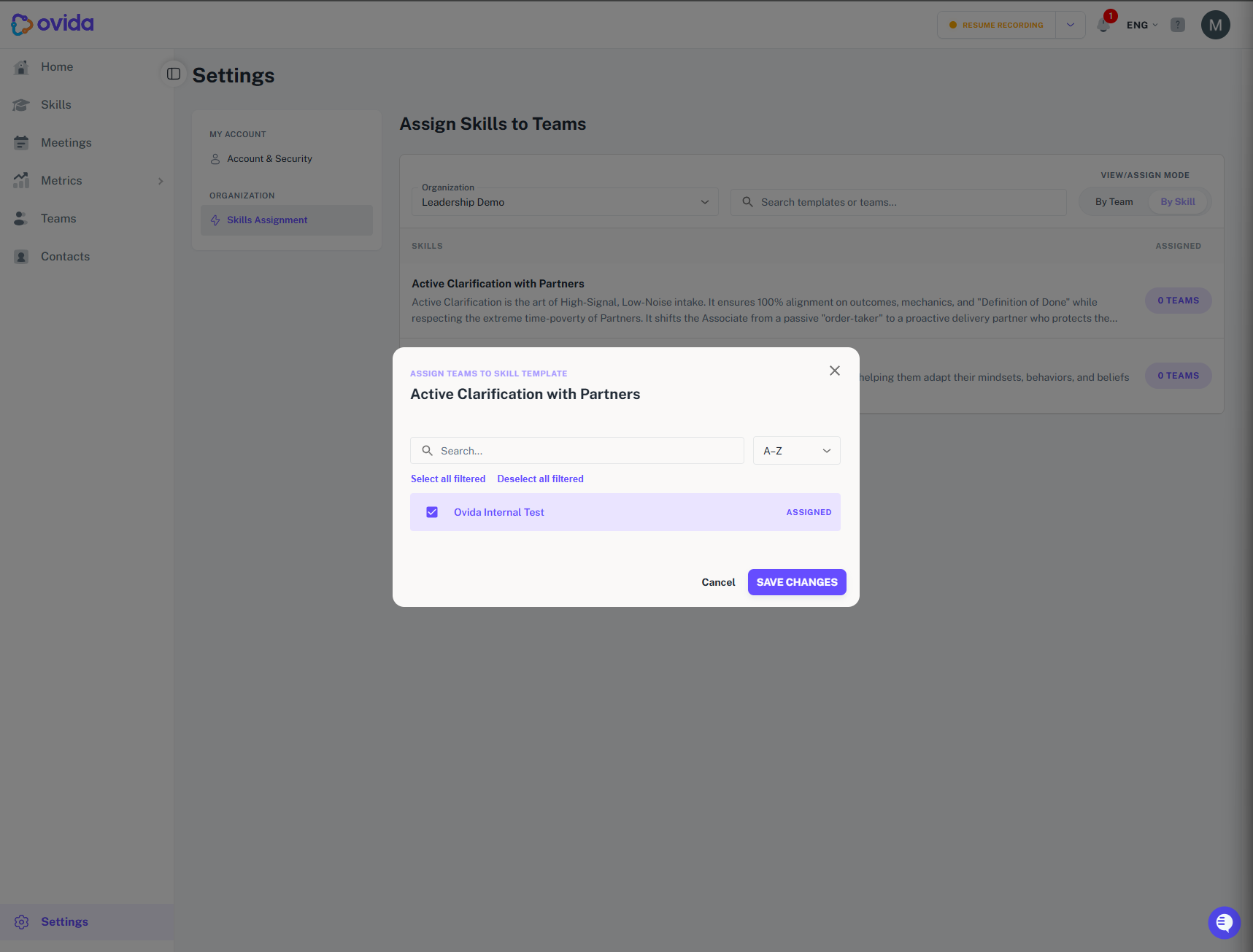
Tip Select all filtered and Deselect all filtered act only on the teams currently shown by your search. Teams hidden by the search are left unchanged.