How do I search, filter and sort my team's members?
Last updated: November 20, 2026
Use Filter and the column headings on a team's Team members tab to find a person, or to see only members who are inactive or about to expire.
For Team Owners and Team Admins.
Filter the member list
Click the Ovida logo at the top-left, select Settings, then click Teams under Team Settings.
Select the team.
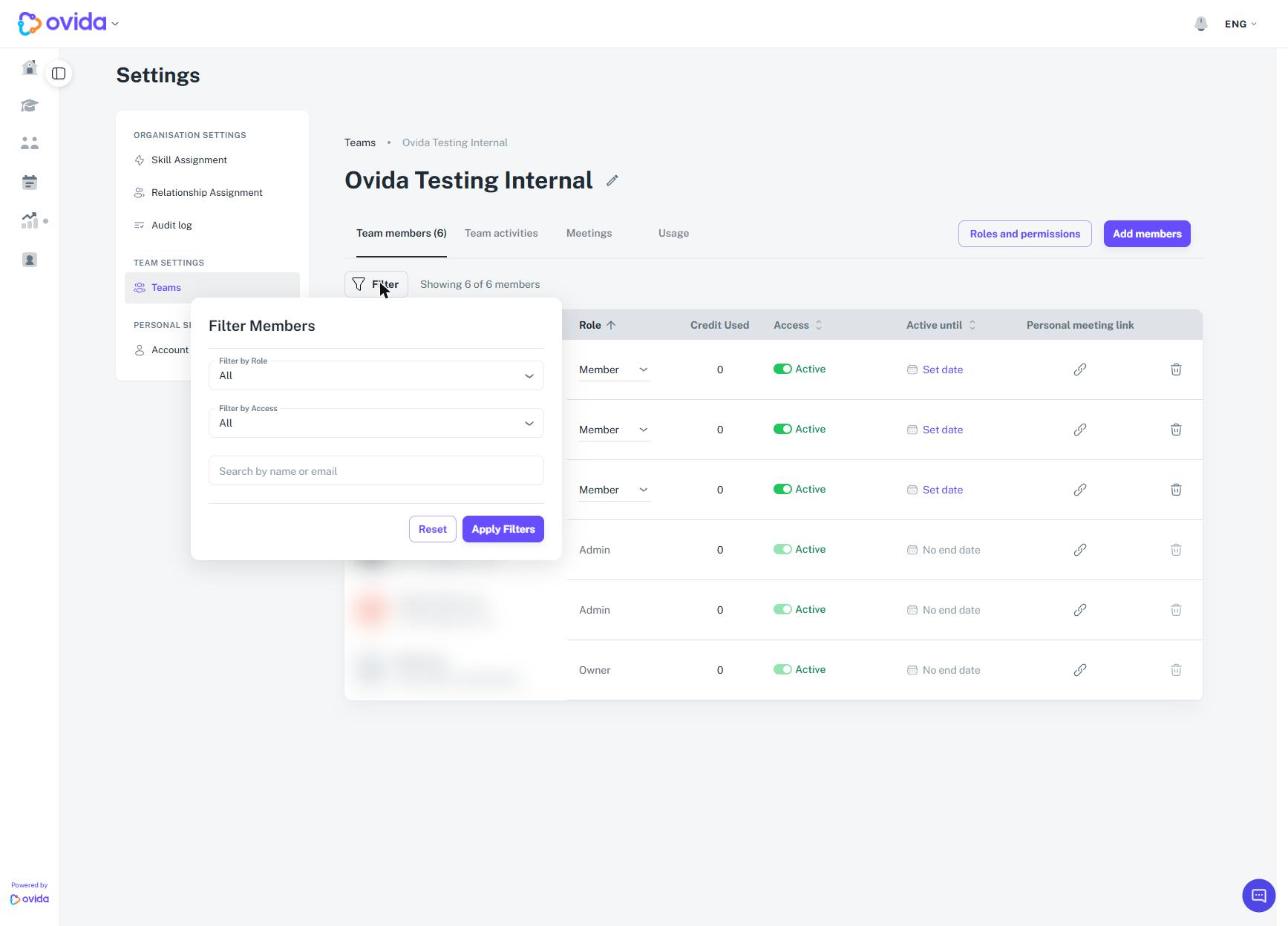
On the Team members tab, click Filter. The Filter Members window opens.
Set one or more of these options:
Filter by Role: choose one or more roles. You see members with any of the roles you choose.
Filter by Access: choose All, Active, Expiring within 30 days or Inactive.
Search by name or email: type part of a name or email address. Capital letters and extra spaces don't matter.
Click Apply Filters.
The list stays the same until you click Apply Filters. Filters combine, so a member must match all of them to appear. The line next to Filter shows how many members match, for example "Showing 3 of 7 members". Click Reset in the Filter Members window to clear all filters.
Expiring within 30 days shows active members whose Active until date falls within the next 30 days, using your own time zone.
Sort the member list
Click a column heading to sort by Name, Role, Access or Active until. Click it again to reverse the order. Members with no Active until date appear last when you sort by that column.
Good to know
Filters and sorting apply to the whole team, not just the page you are on. Pages hold 50 members.
Ovida does not remember your filters. When you reload the page or come back later, the list returns to its default order: grouped by role, active members first, then by name.
If you change a member's access while the Active filter is on, that member stays in the list until you apply the filters again, reset them or reload the page.
For changing access dates, see "How do I set a team member's access and expiry date?".