How do I edit a scheduled meeting?
Last updated: May 25, 2026
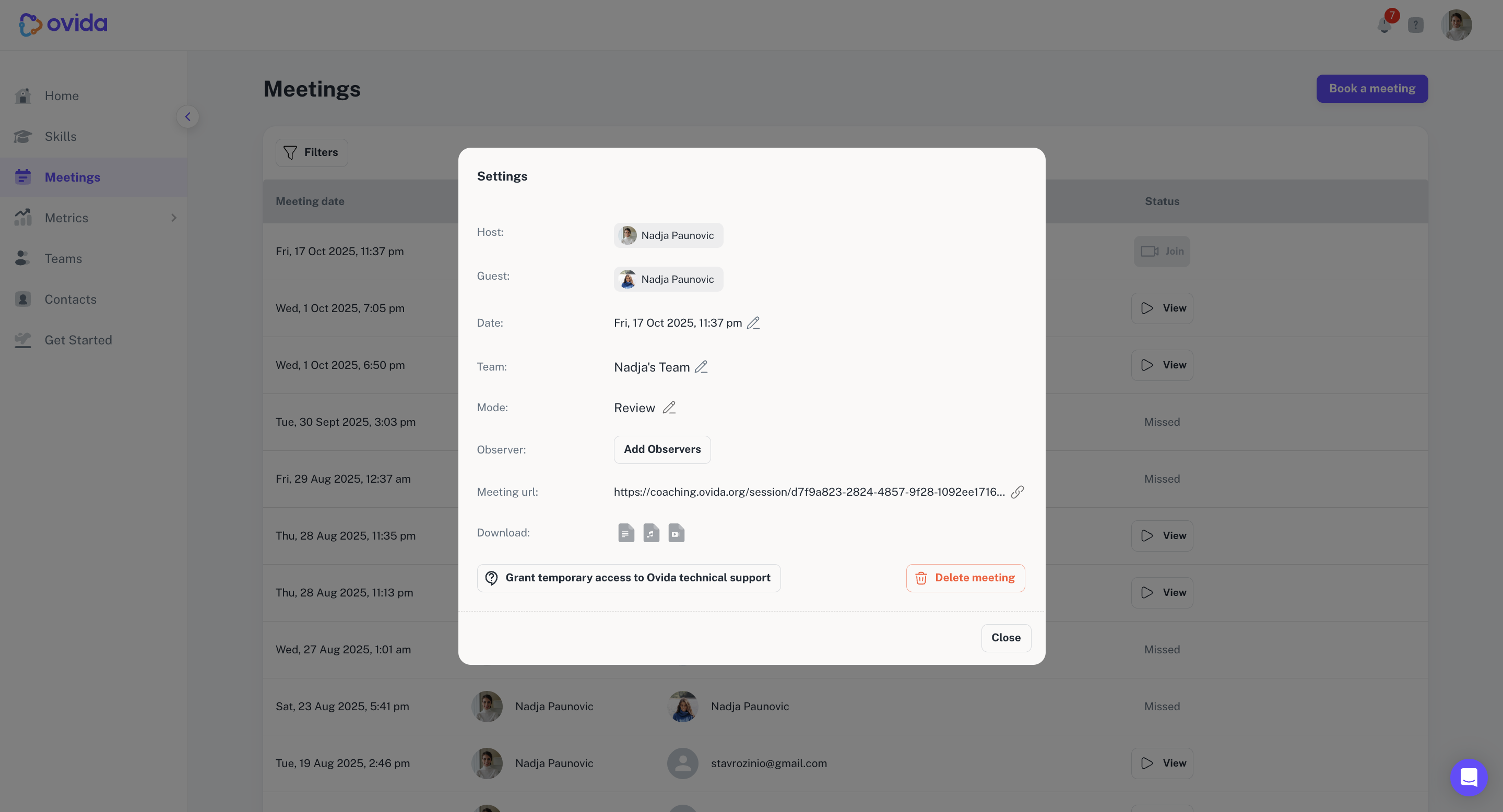
Hosts can change the date, time, team, mode, and observers for any of their scheduled meetings.
You can edit meetings from either the Home page or the Meetings page.
What you can edit
Date and time (only for meetings that haven't yet happened)
The team the meeting is allocated to
Meeting mode (Review or Train)
Observers (add or remove)
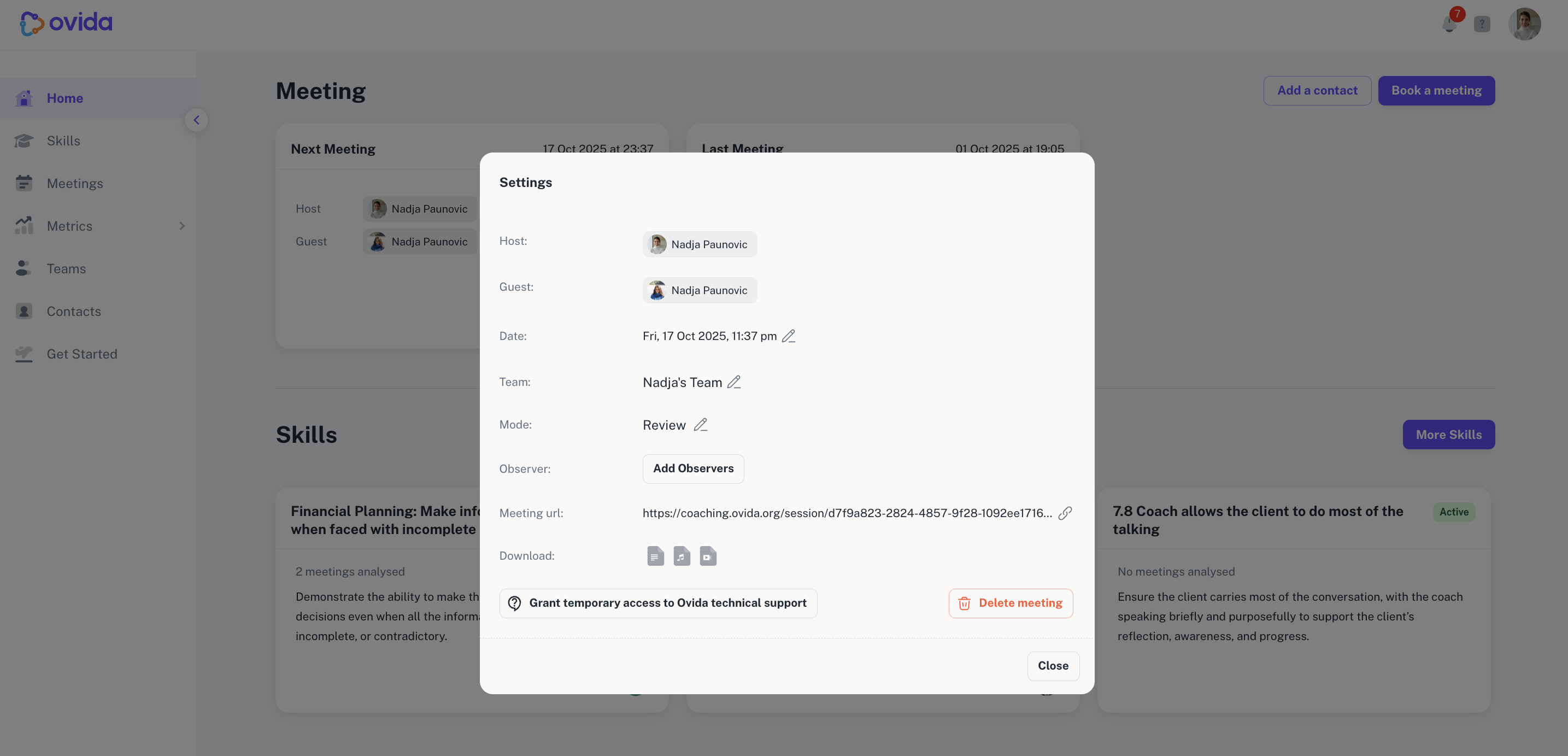
From the Home page
Click the 3 dots next to the meeting, then the edit icon. Make your changes and confirm.
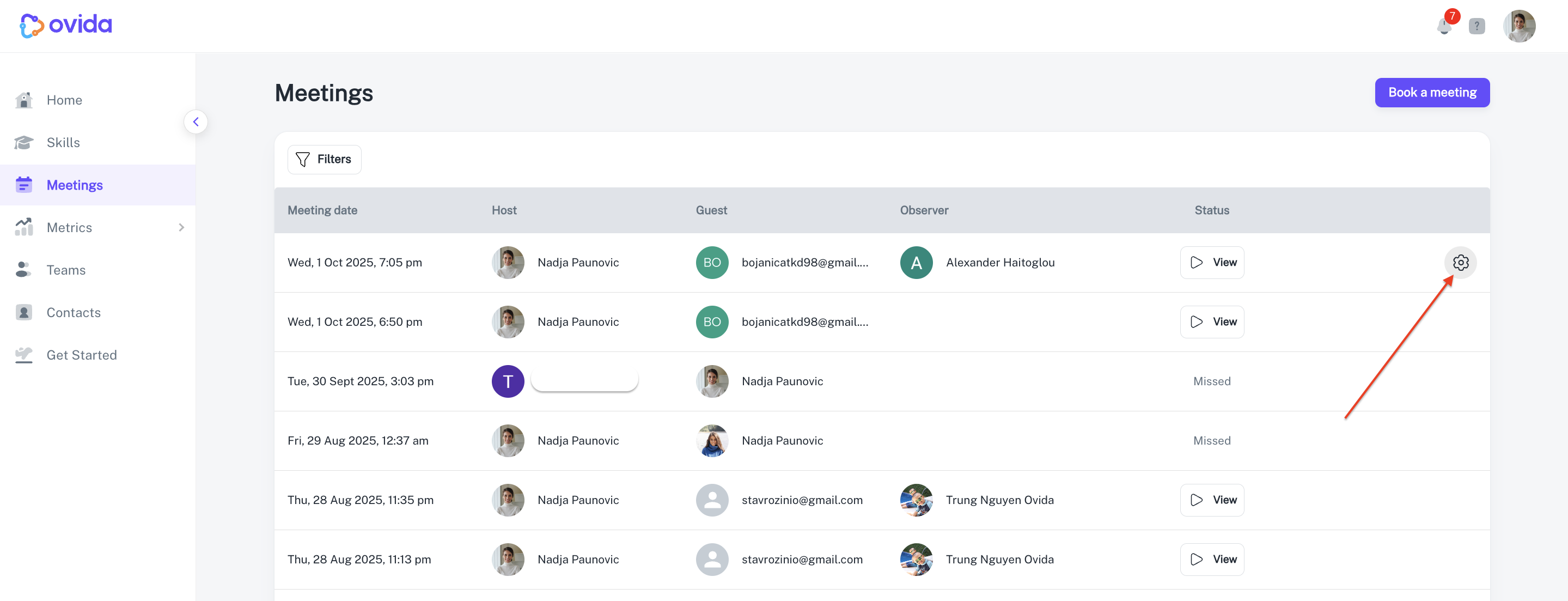
From the Meetings page
Click the Settings icon next to the meeting, then the edit icon. Make your changes and confirm.
What happens after you save
All participants (guest and observers) receive an email and an in-app notification with the updated details.
The new meeting time replaces the old one on everyone's view immediately.
A few limitations
Only the host can edit a meeting.
You can only change the time for meetings in the future.
You can't change a guest's email address. If you made a typo, delete the meeting and schedule a new one.
Every meeting must be allocated to one team. To change which team, edit the meeting.
Only your team members can be added as observers.