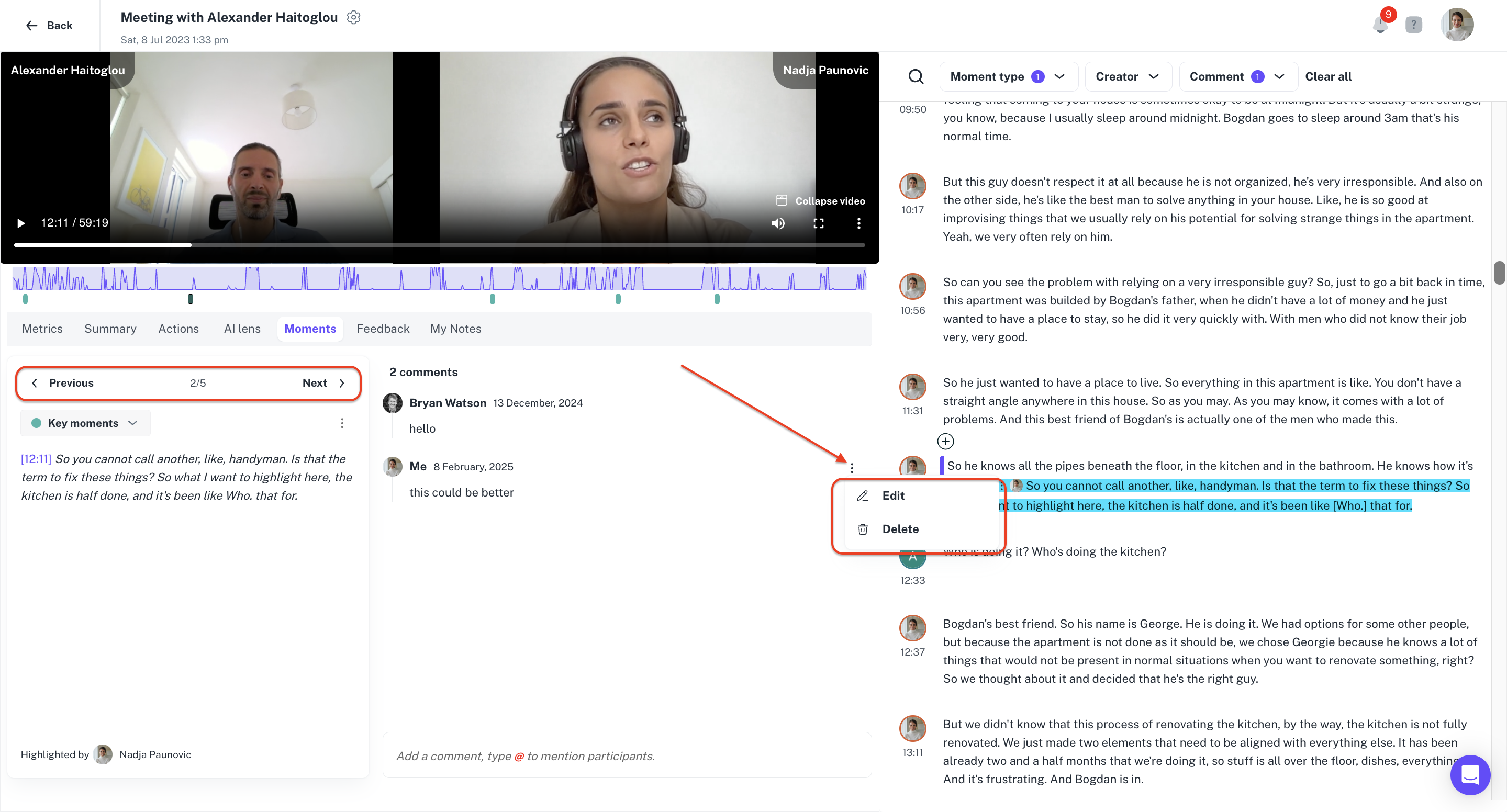
How do I add, find, and manage comments on a meeting?
Last updated: May 24, 2026
Comments let you and your observers leave context, reflections, or questions tied to specific moments in a meeting.
Comments in Ovida are always attached to a moment. If there's no moment at the point you want to comment on, you'll need to create one first.
Adding a comment
There are two ways to add a comment, depending on where you're looking in the review.
From the transcript
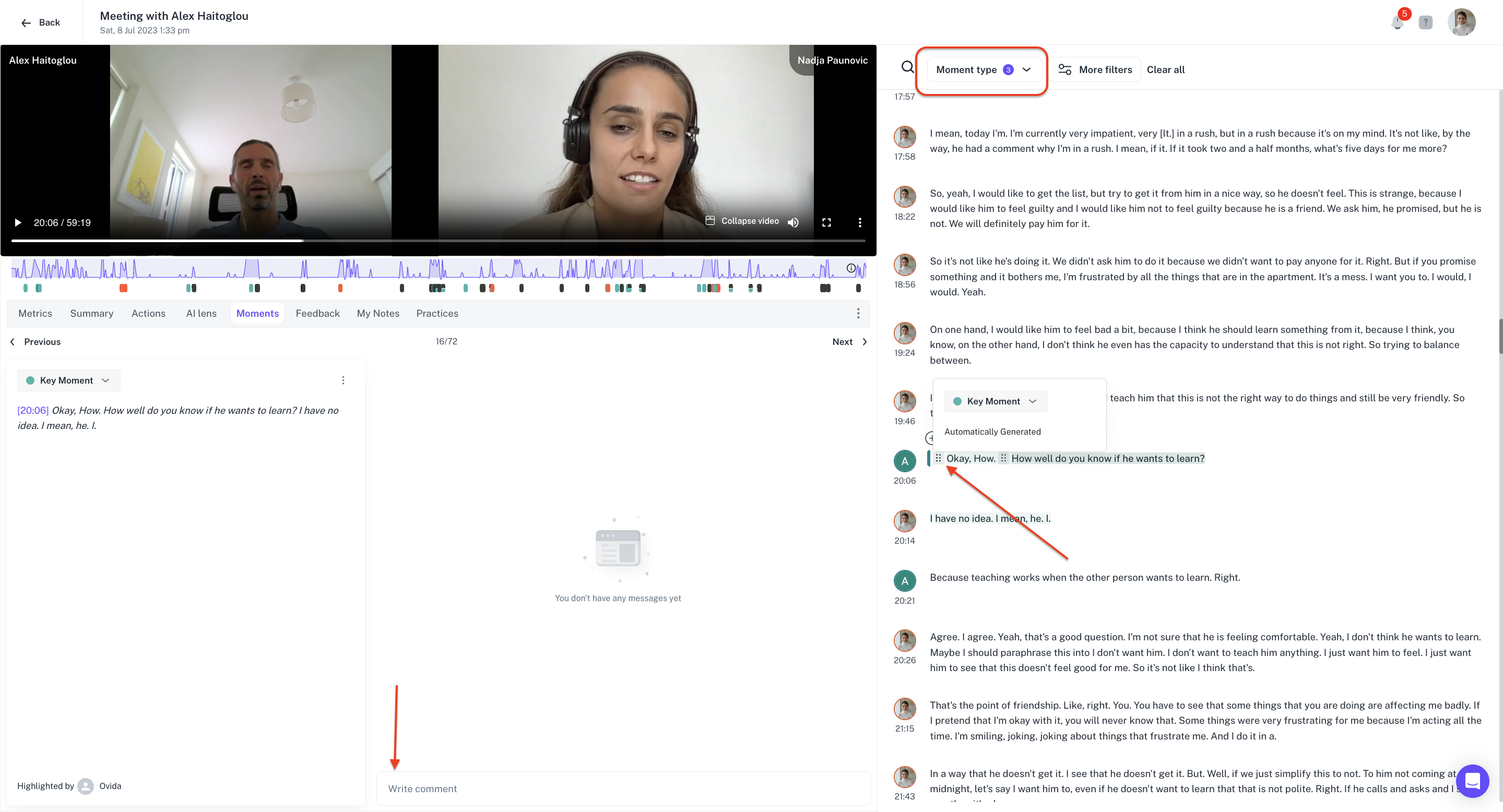
Use the Moment type filter to highlight the moments you want to comment on. Click the ellipsis menu (⋯) next to a moment to open its details, then type and send your comment.
From the moment timeline
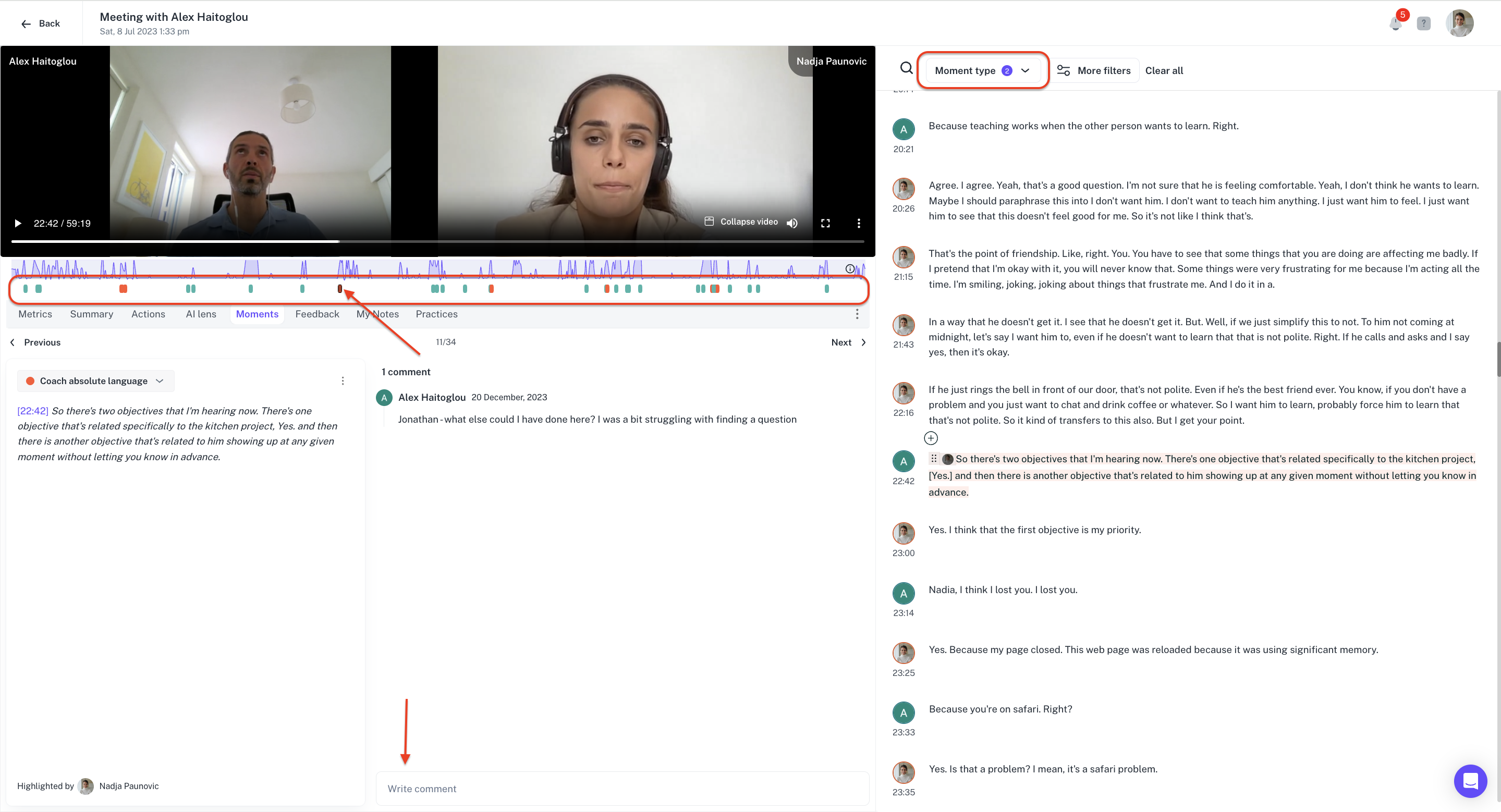
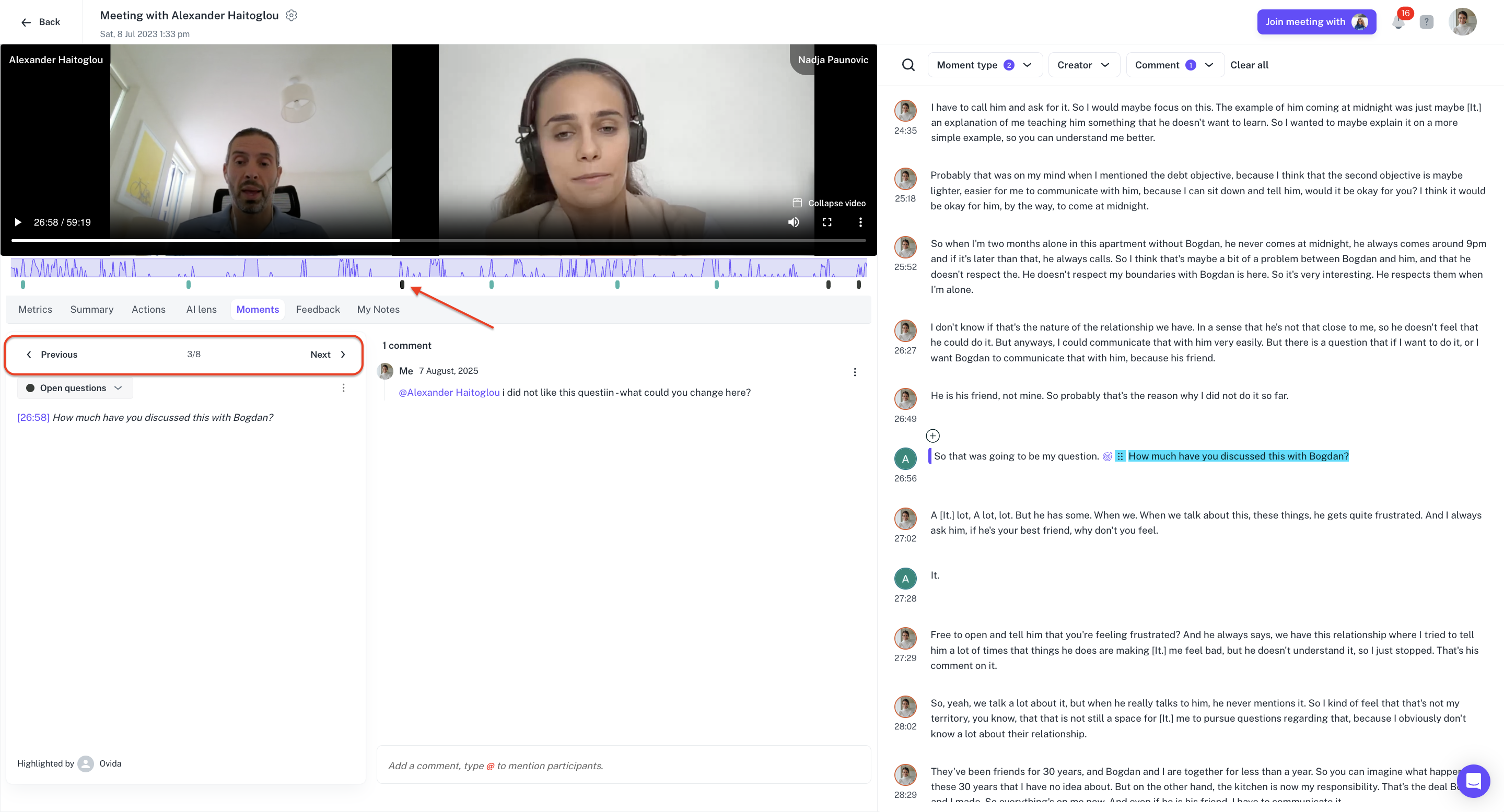
Use the Moment type filter to highlight moments below the share of voice timeline. Click the toggle for a specific moment to open its details, then add your comment.
Finding comments
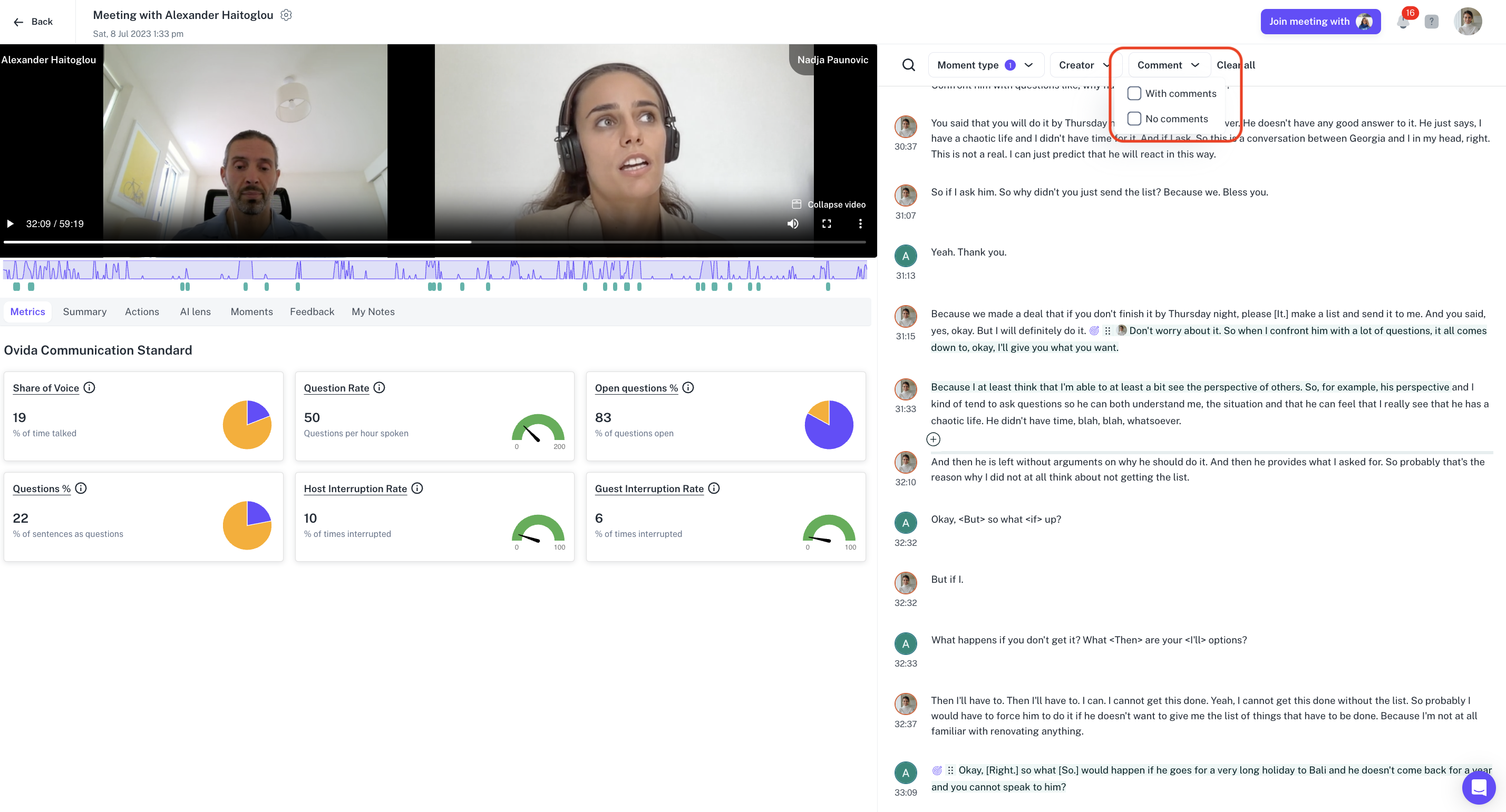
To find comments across the meeting, use the Comment filter in the Moments tab. You'll only see comments attached to moments that are visible under your current Moment type filter.
For example, if you've turned on the filter for key moments and open questions only, only comments on those moment types will appear in the list.
You can move between filtered moments using the toggles below the share of voice timeline, or the previous/next buttons.
Editing or deleting a comment
You can edit or delete any comment you've authored.
Apply both the Moment type and Comment filters to find the relevant moment.
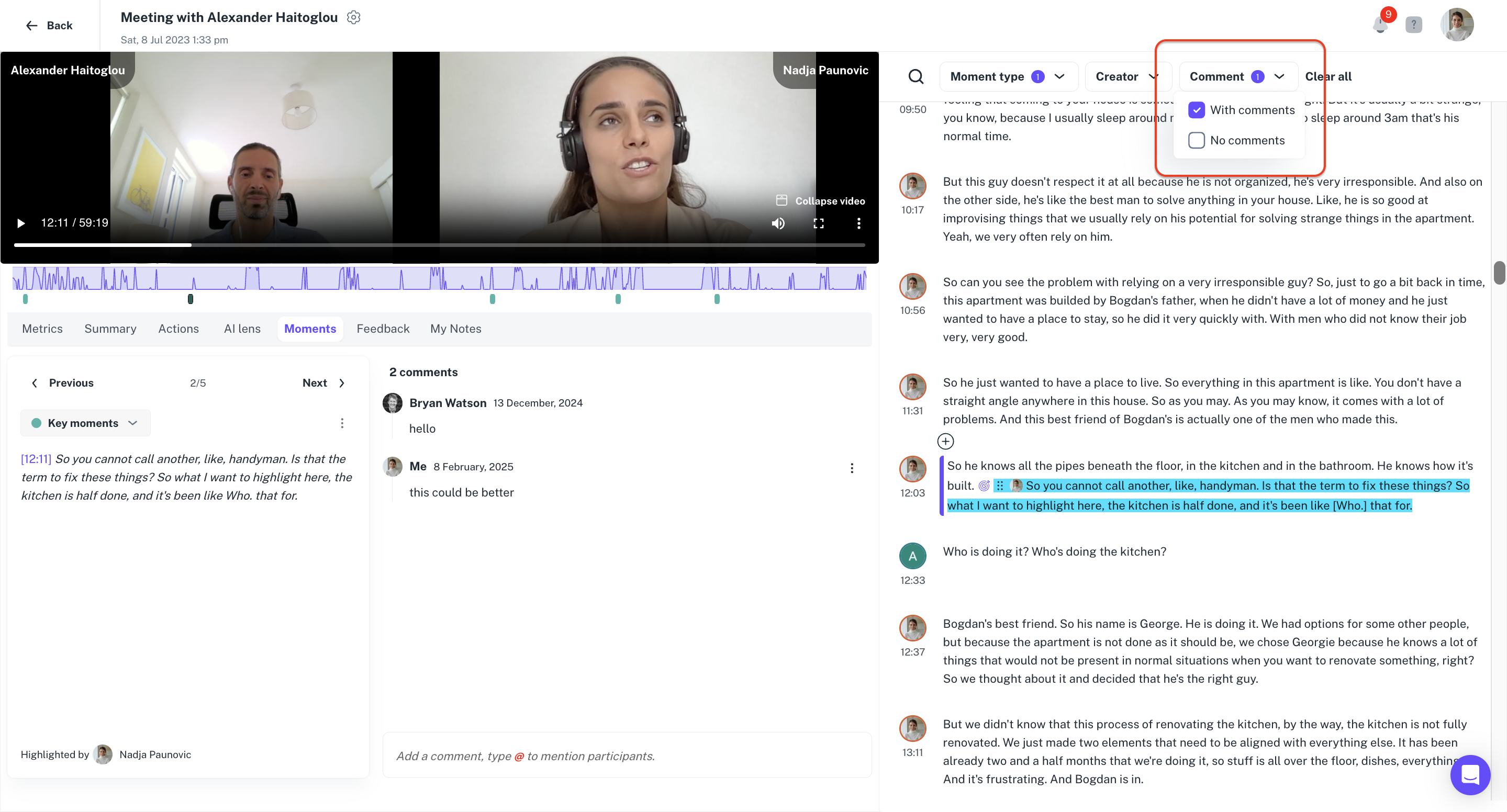
Click the three dots (⋯) next to the comment, then choose Edit or Delete.