How do I grant Ovida access to my camera and microphone?
Last updated: May 24, 2026
Allow your browser to share your camera and microphone with Ovida so you can join meetings.
Ovida runs in your browser using the same technology as Google Meet, so you don't need to install anything. But depending on your browser's privacy settings, you may need to grant Ovida permission to access your camera and microphone.
We recommend Chrome or Edge. Safari often creates camera and microphone issues we can't control on our end.
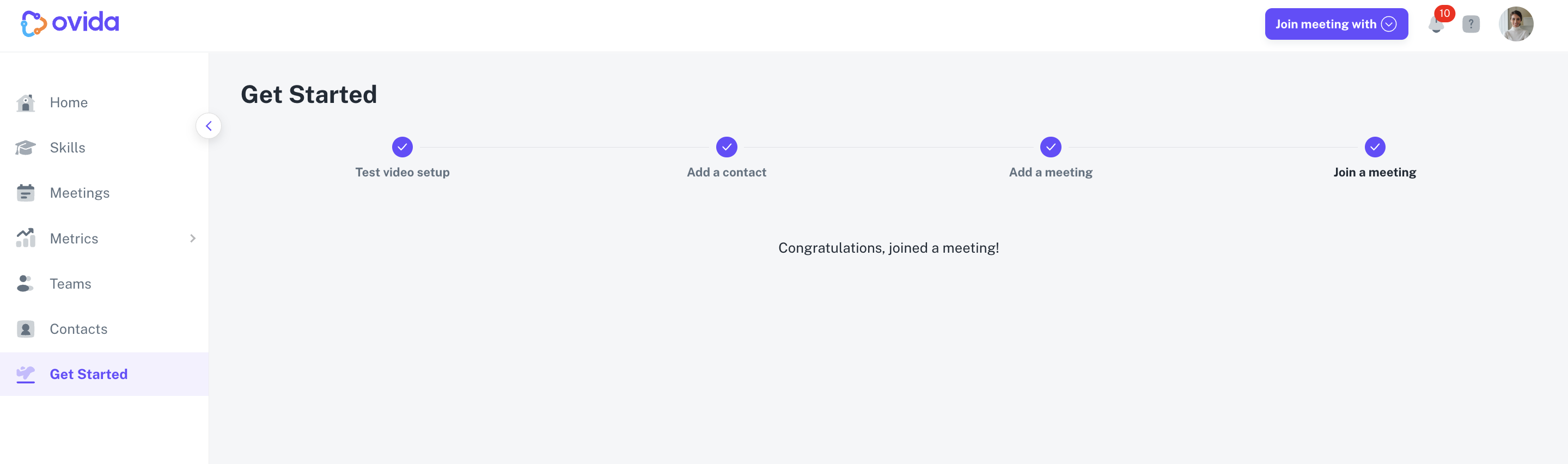
The quickest fix: use the pre-flight setup wizard
The easiest way to troubleshoot is the pre-flight video test app on the Getting started page. It checks your device's setup and walks you through granting access.
What it should look like when it's working
If Ovida has access, your camera and microphone are enabled below your video preview. With multiple devices, you can choose which one to use from the dropdown.
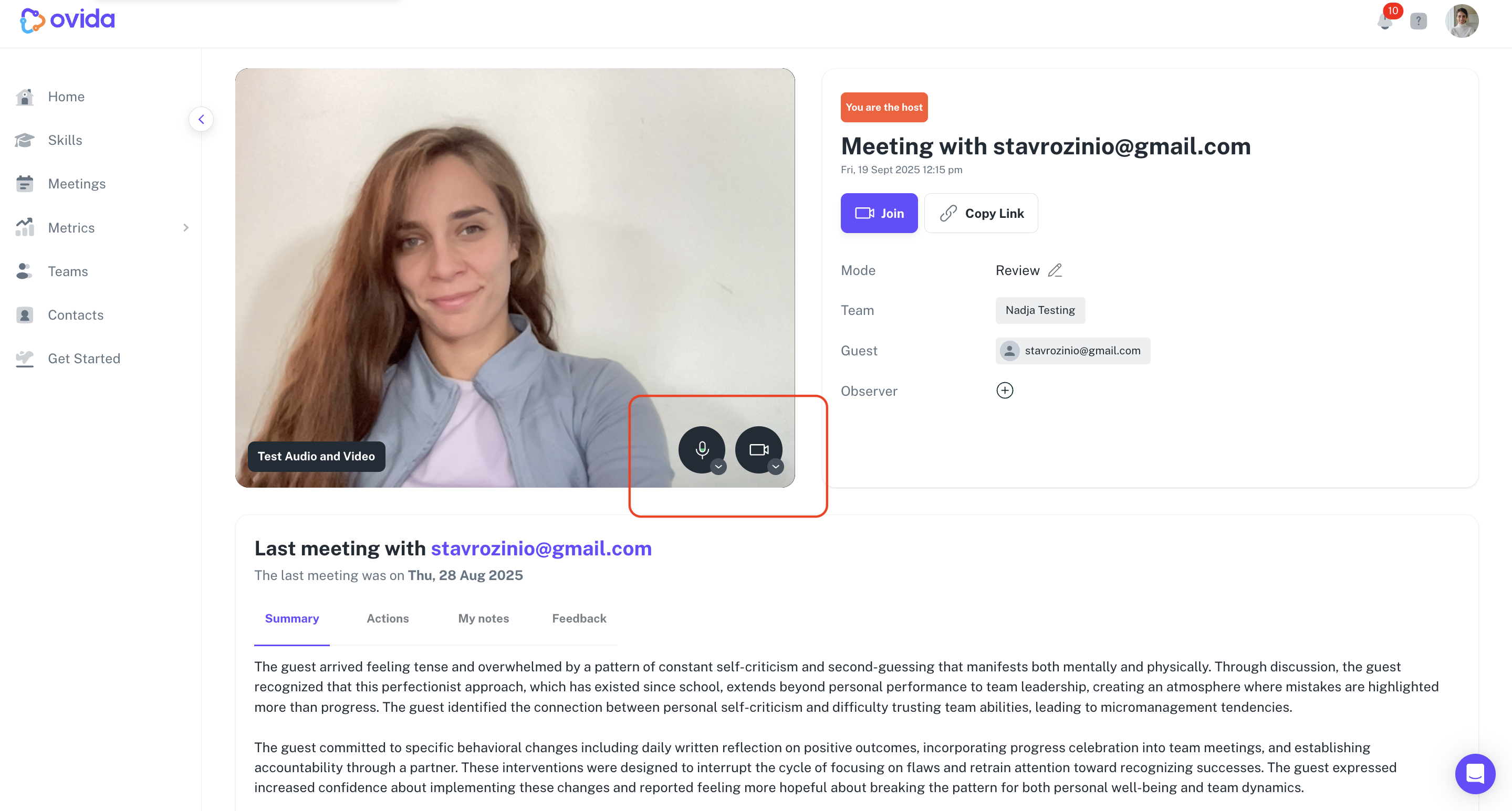
If that's not what you see, follow the steps below.
Step 1: Allow access when prompted
When Ovida asks your browser for camera and microphone access, click Allow.
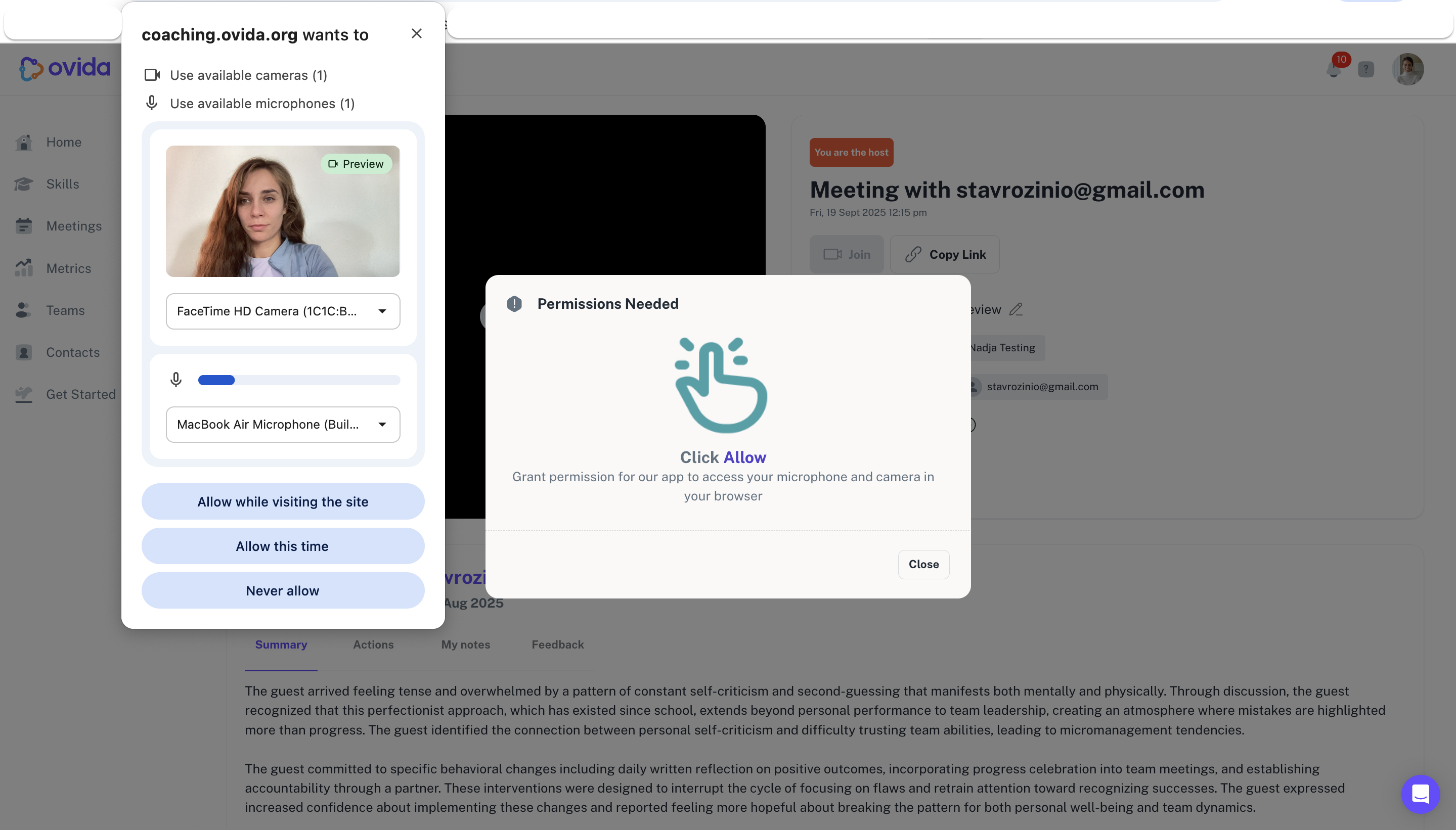
Step 2: If you don't see a prompt, check your browser settings
You may see a warning like "no mic or camera detected" when trying to join, or this warning in the pre-flight app:
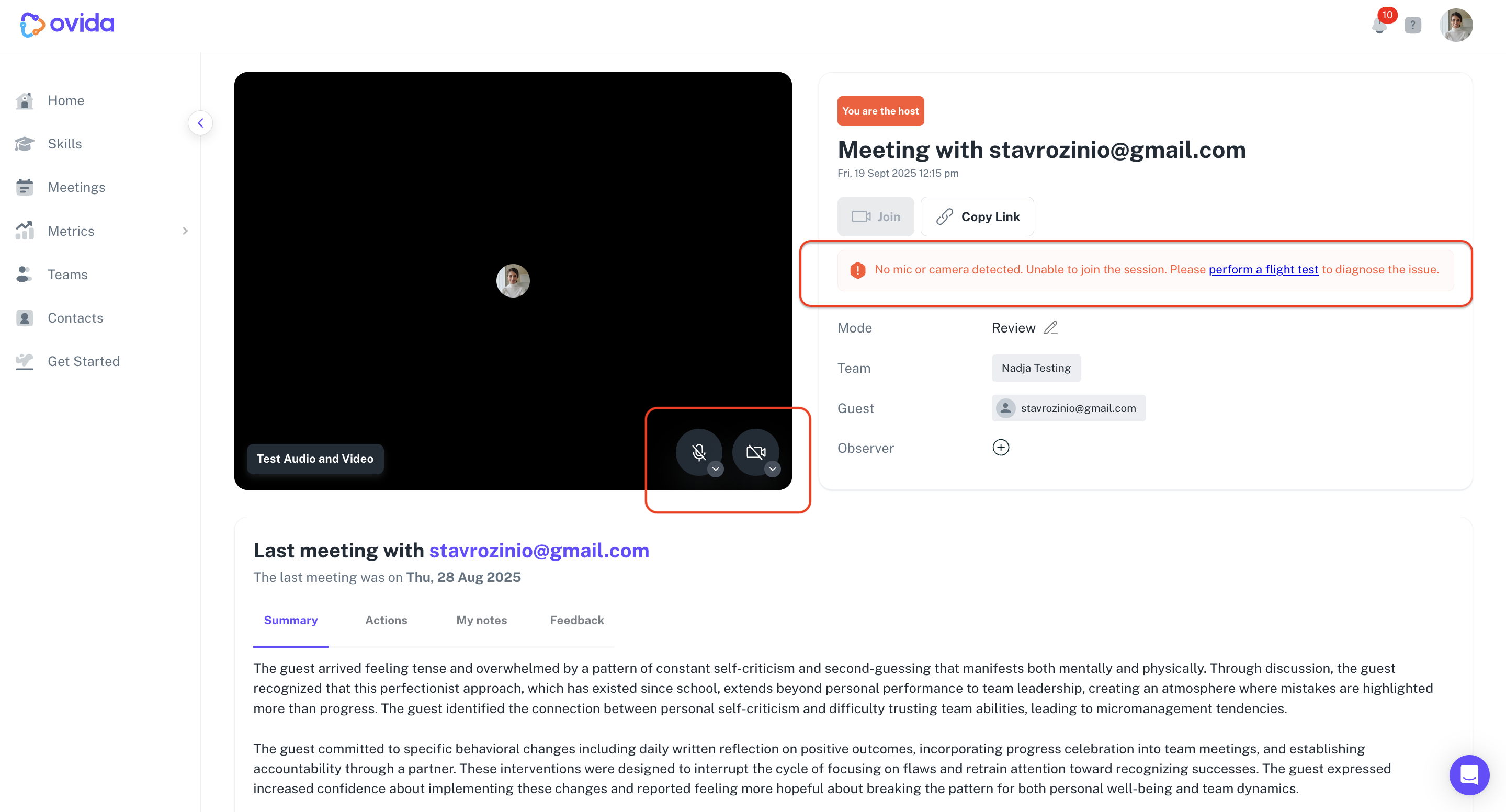
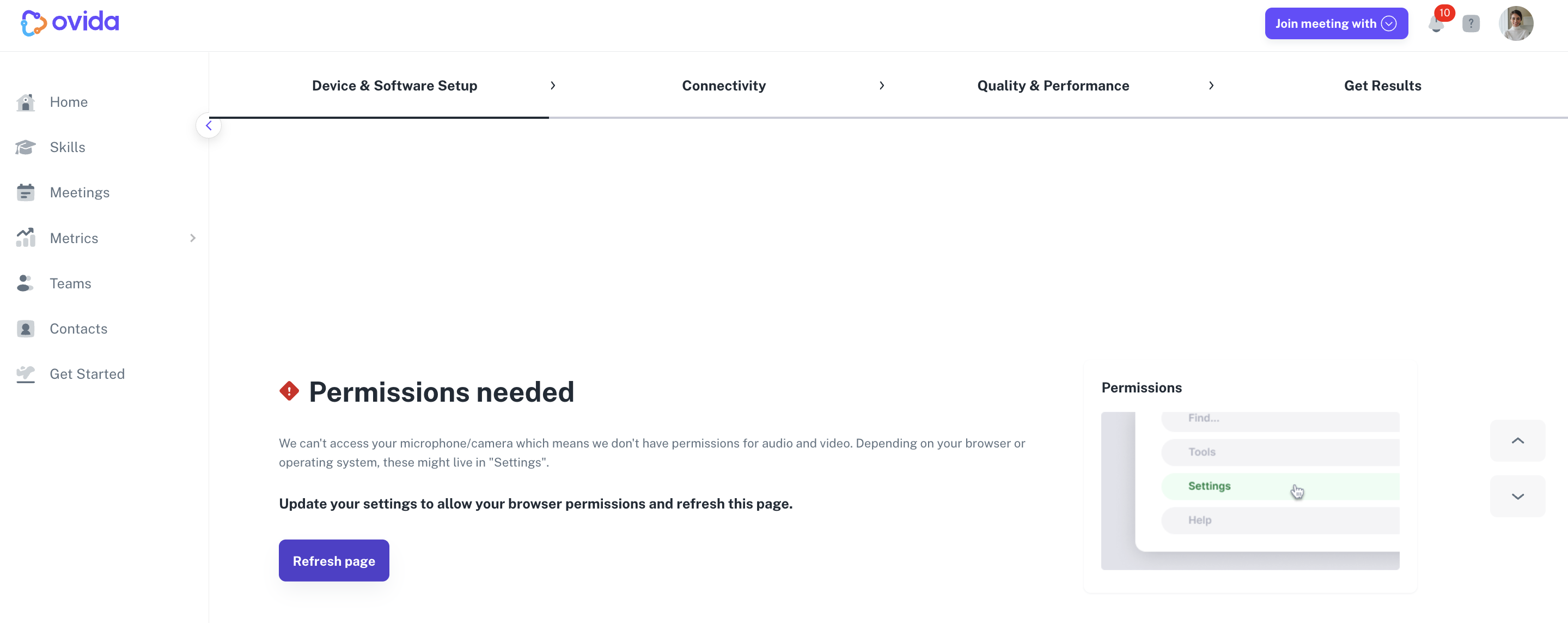
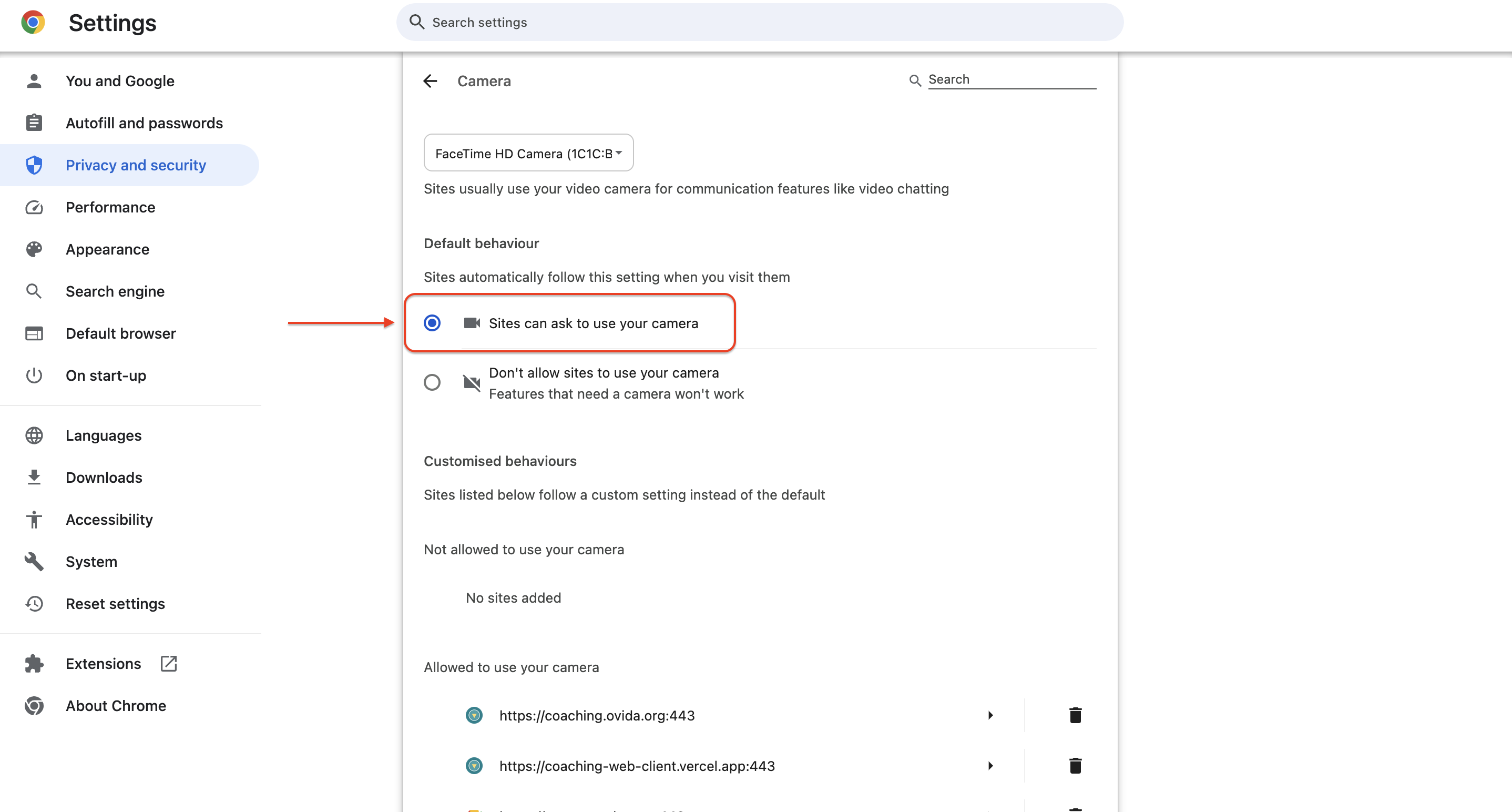
This means your browser is blocking Ovida from even asking for permission. To fix this in Chrome:
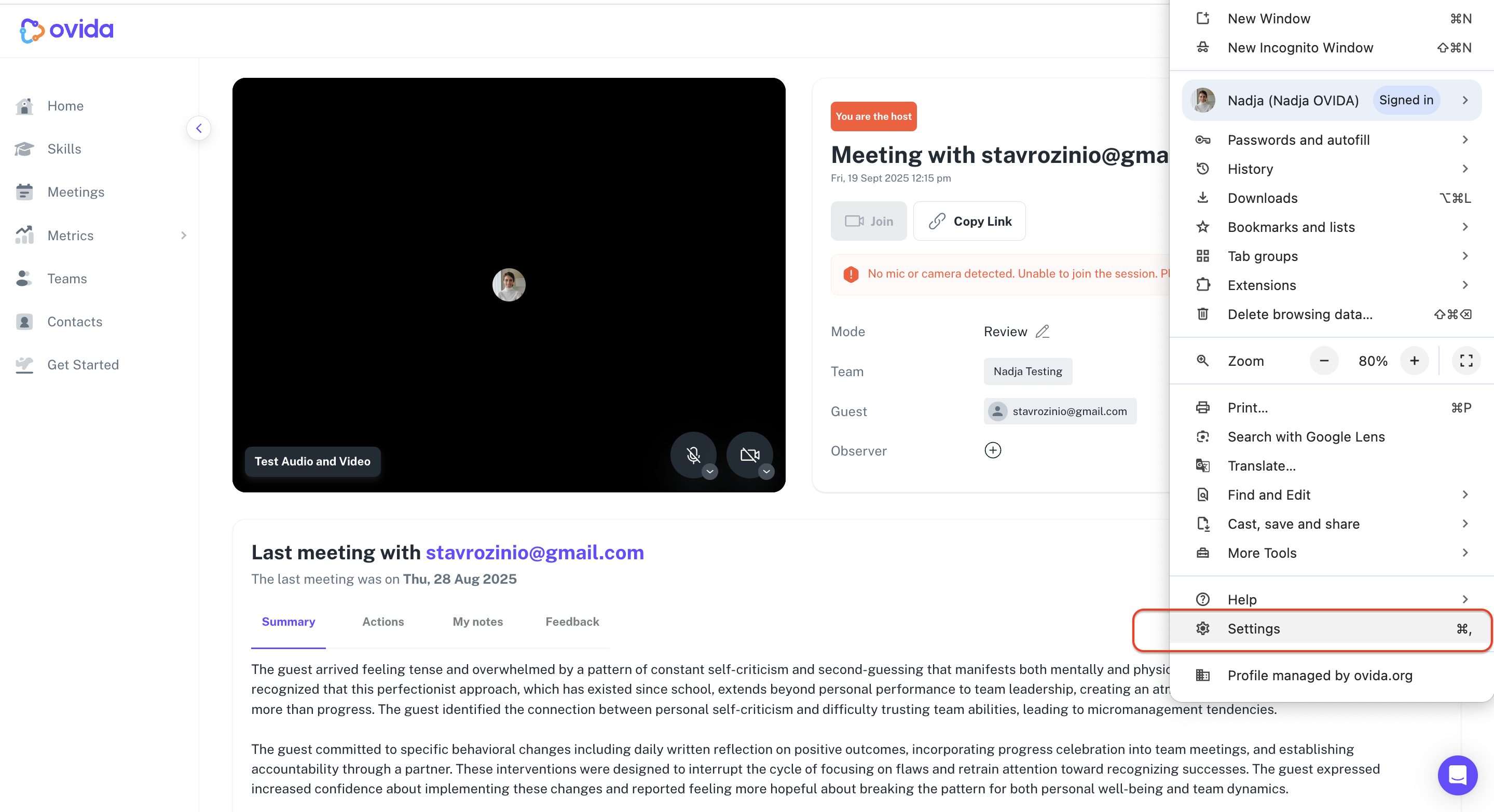
Click the menu (3 dots, top right), then Settings.
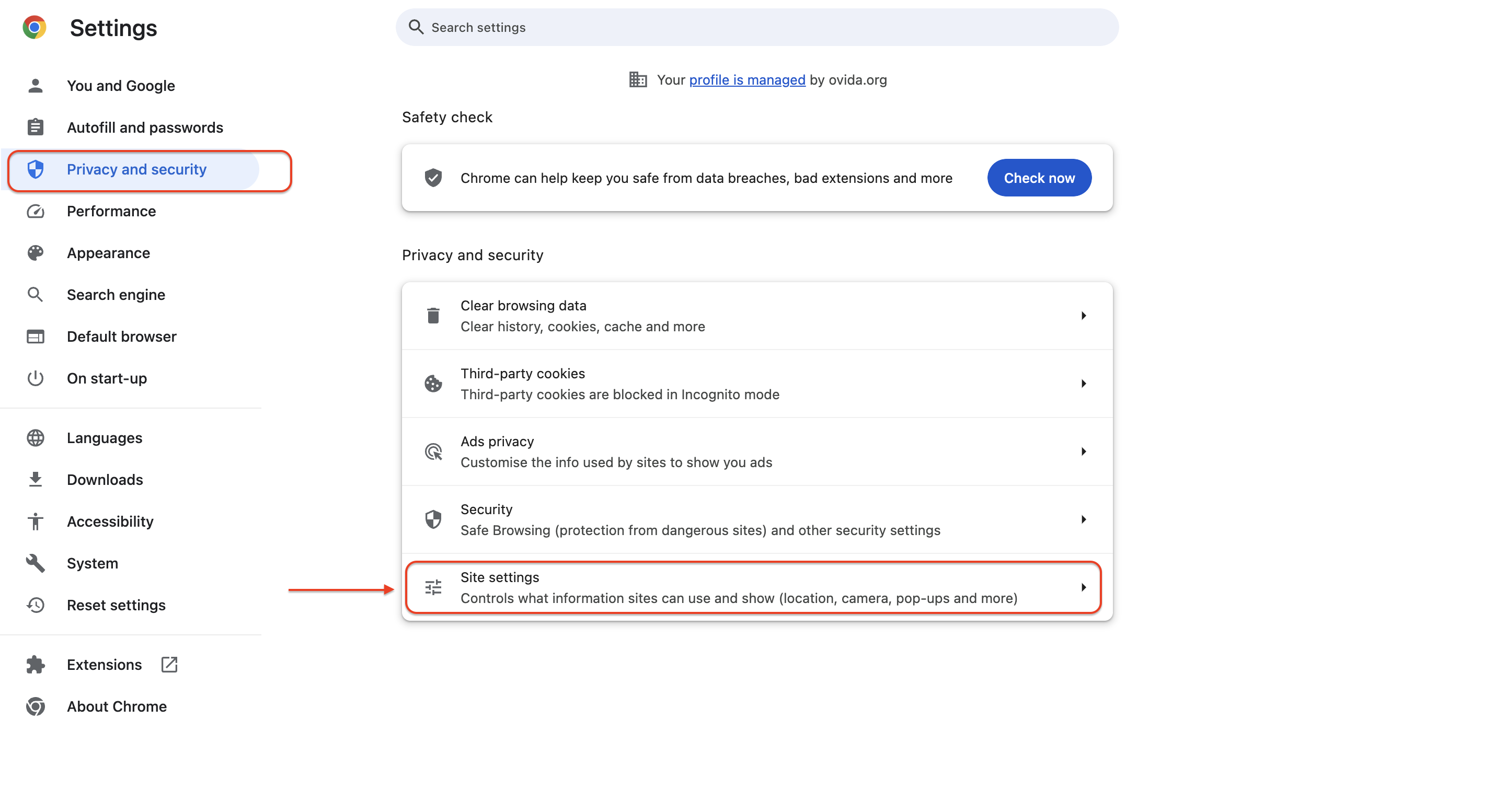
Go to Privacy and security > Site settings.
Click Camera or Microphone (whichever you need to fix).
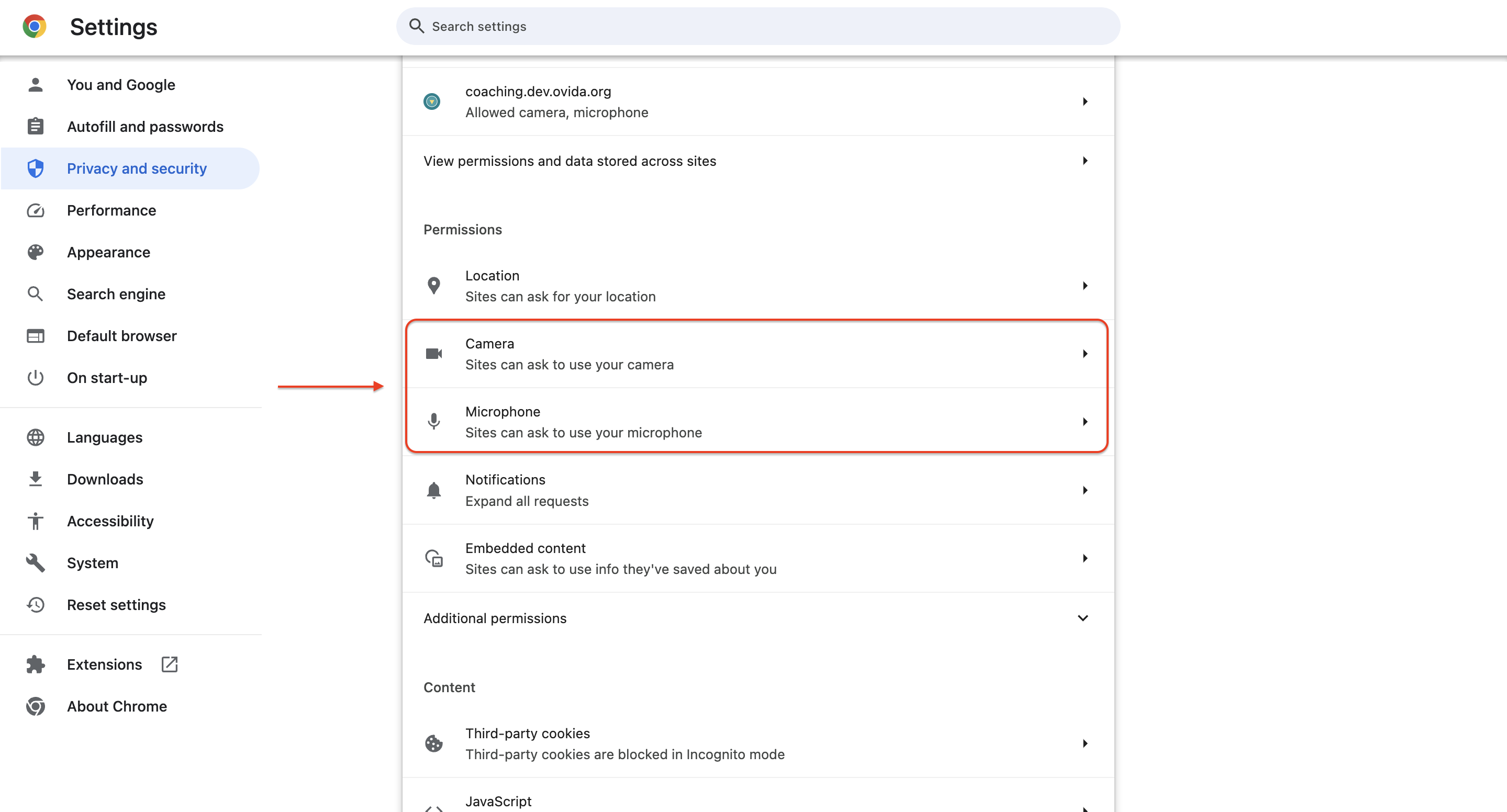
Select Sites can ask to use your camera/microphone.
Go back to Ovida, refresh the join page, and try again.
Using a different browser? The steps differ slightly across Chrome, Firefox, Edge, and Safari. Search "grant a website access to my camera and microphone in [your browser]" for current step-by-step instructions.