What's on the Meeting Review page?
Last updated: May 24, 2026
A map of every element on the meeting review screen and what each one is for.
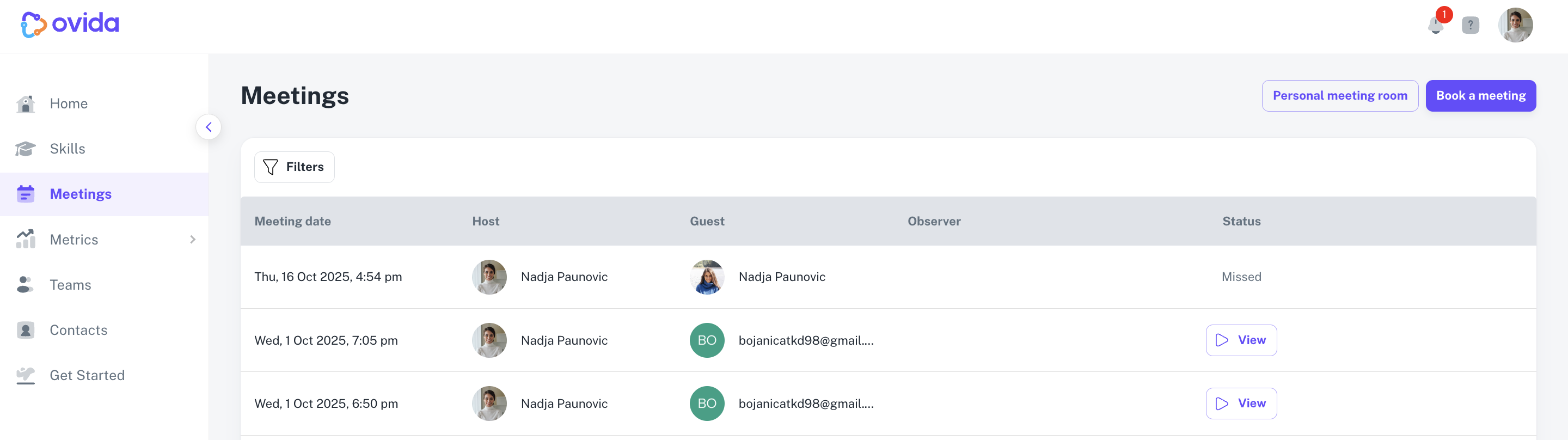
After a meeting is processed, click View next to the meeting on your Meetings page to open the review. Here's what you'll see.
The review page at a glance
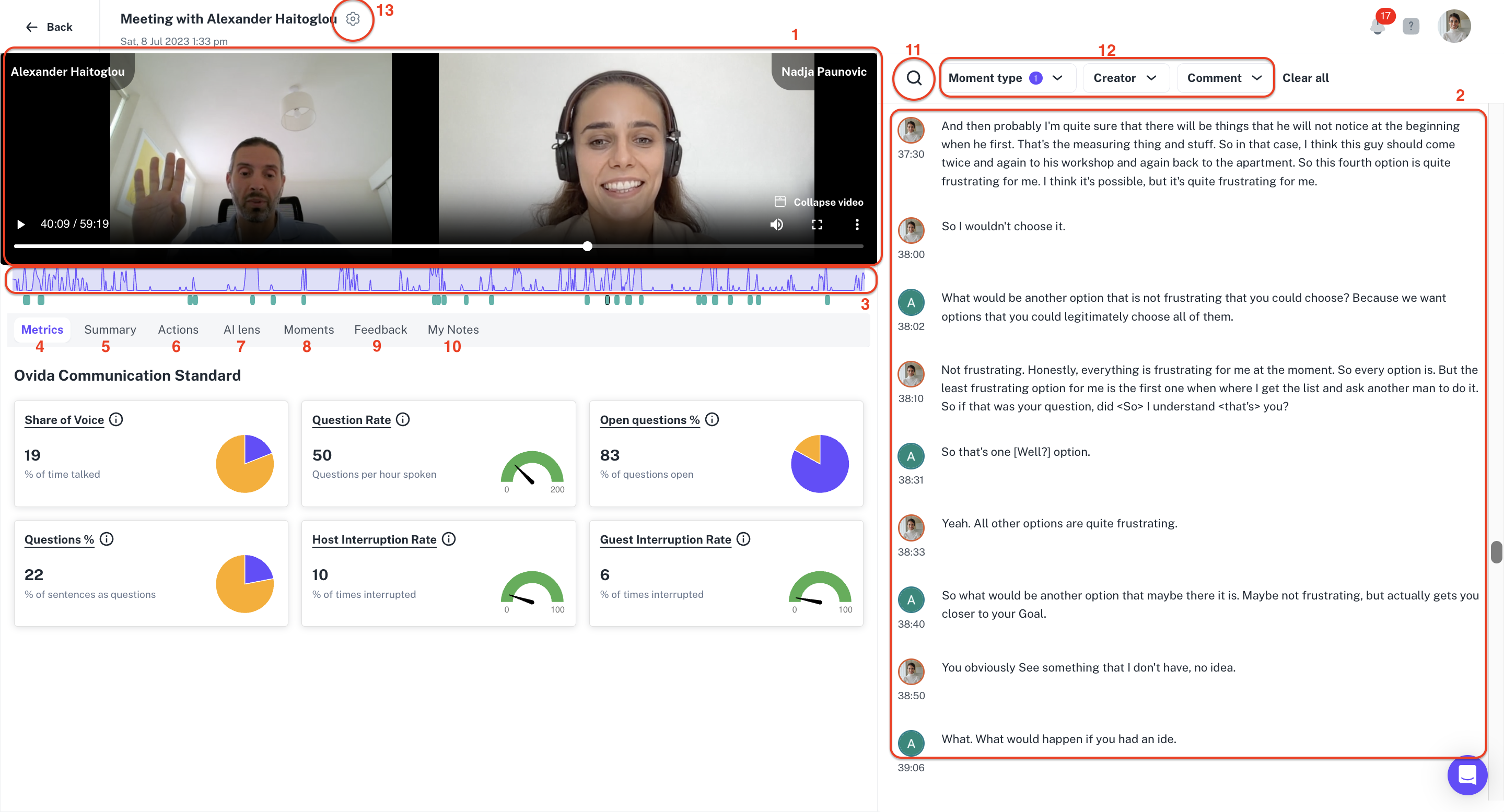
Meeting video — playback of the recorded portions of your meeting. Pause sections aren't included. Adjust playback speed from the ⋮ menu.
Transcript — near-perfect speaker-attributed transcript of the conversation.
Share of voice timeline — visualisation of who spoke and when. Lighter sections show the guest speaking, darker sections show the host.
Metrics tab — communication metrics for the meeting: share of voice, question rate, open question ratio, and more.
Summary tab — an AI-generated overview of what took place.
Actions tab — action items captured by Ovida's AI for both host and guest.
AI Lens tab — ICF PCC coaching markers identified from your conversation. Enabled by request.
Moments tab — significant points in the meeting flagged by Ovida's AI, plus moments you've created manually.
Feedback tab — space for mentors, supervisors, and observers to leave detailed feedback. Visible to all participants in some meeting modes.
My Notes tab — your private notes for the meeting. Each participant has their own, completely private.
Search bar — find specific words or topics in the transcript. Shows mention counts and lets you jump between hits.
Moment filters — narrow down the visible moments by type, creator, or whether they have comments attached.
Settings menu — change the meeting mode, add or remove observers, or download the transcript, audio, or video. Click the gear icon next to the meeting title.