What are the meeting modes and how do I change them?
Last updated: July 13, 2026
Ovida has two meeting modes: Review and Train. They control who can see and contribute to the meeting analysis, comments, and moments.
The two modes
Review mode
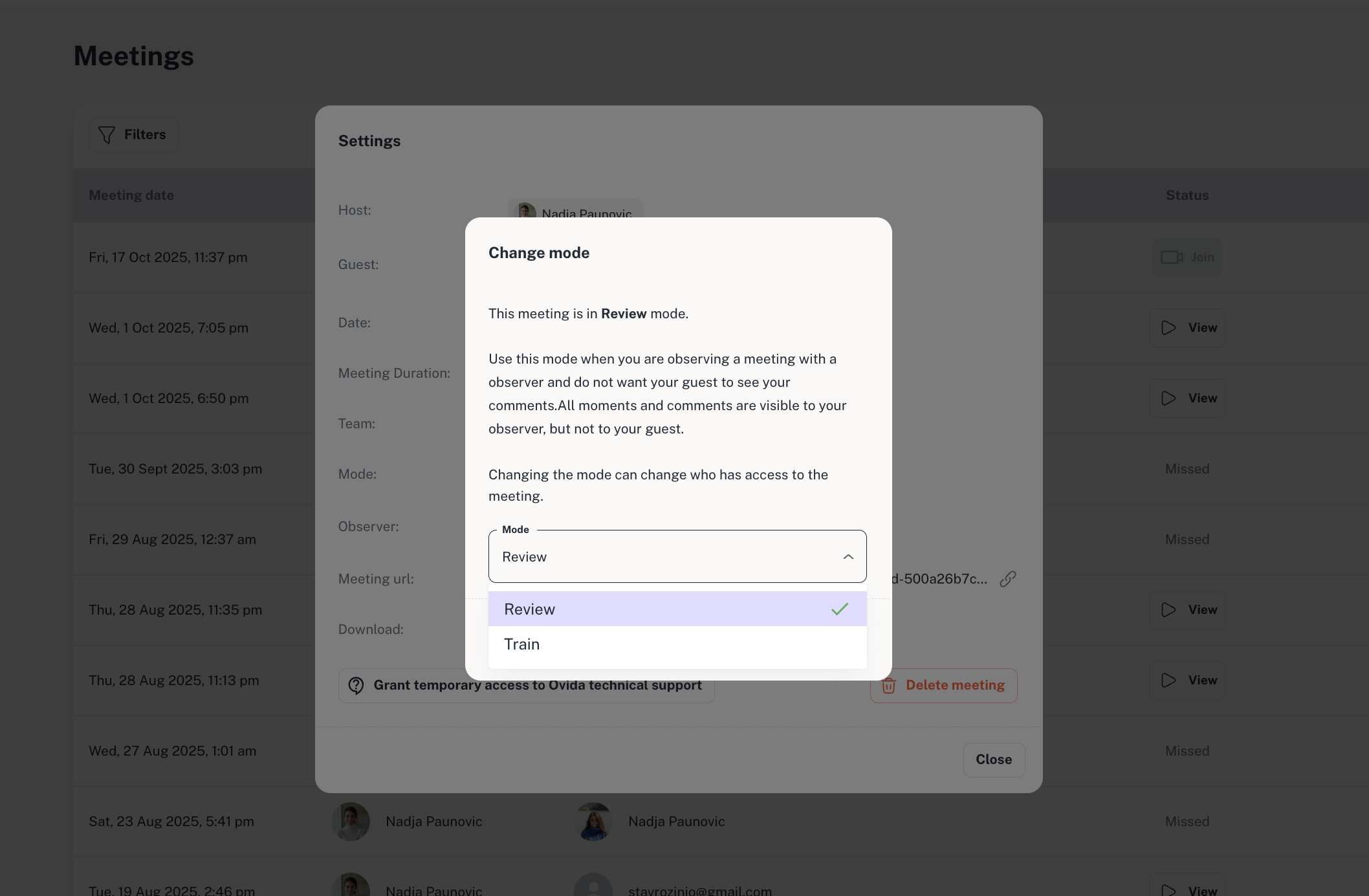
The host and any observers can see and edit moments and metrics. The guest has no access to these. Use this when you want private feedback from an observer or mentor.
ℹ Every meeting starts in Review mode by default.
Train mode
The host, guest, and observers can all see and contribute moments and comments. Use this for training meetings where the guest is a peer or colleague who'll benefit from seeing and contributing to feedback.
When to switch modes
You can change the mode at any time. Common reasons:
The meeting was originally set up in the wrong mode.
You've been getting peer feedback in Train mode and now want private input from an observer.
You've been getting observer feedback in Review mode and now want to open the conversation up to your guest.
Who can change the mode
The meeting host — can change the mode on their own meetings.
Team Owners and Admins — can change the mode on any meeting allocated to their team.
ℹ️ Some organisations restrict which meeting modes can be used. If your organisation does not allow switching modes, you will not be able to change the mode from the meeting lobby.
How to change the mode
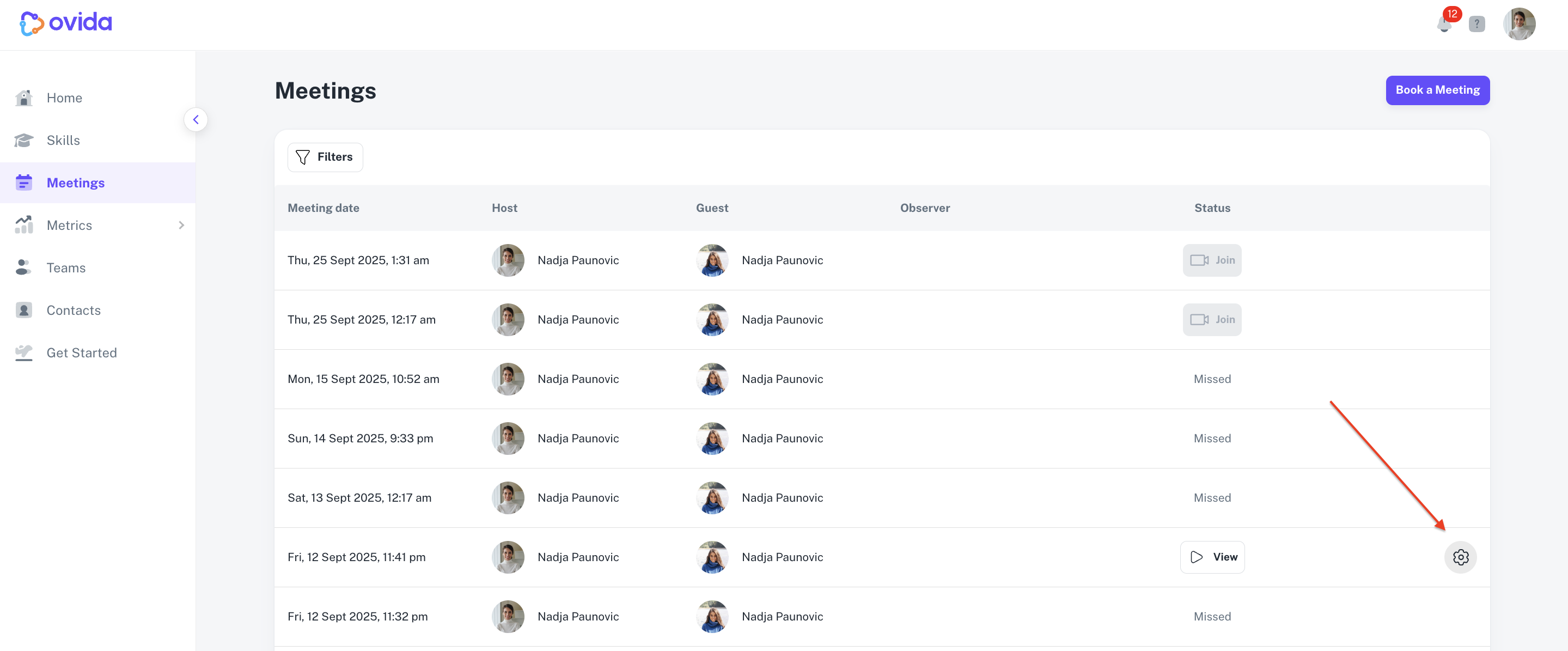
Go to the Meetings page.
Click the Settings icon next to the meeting.
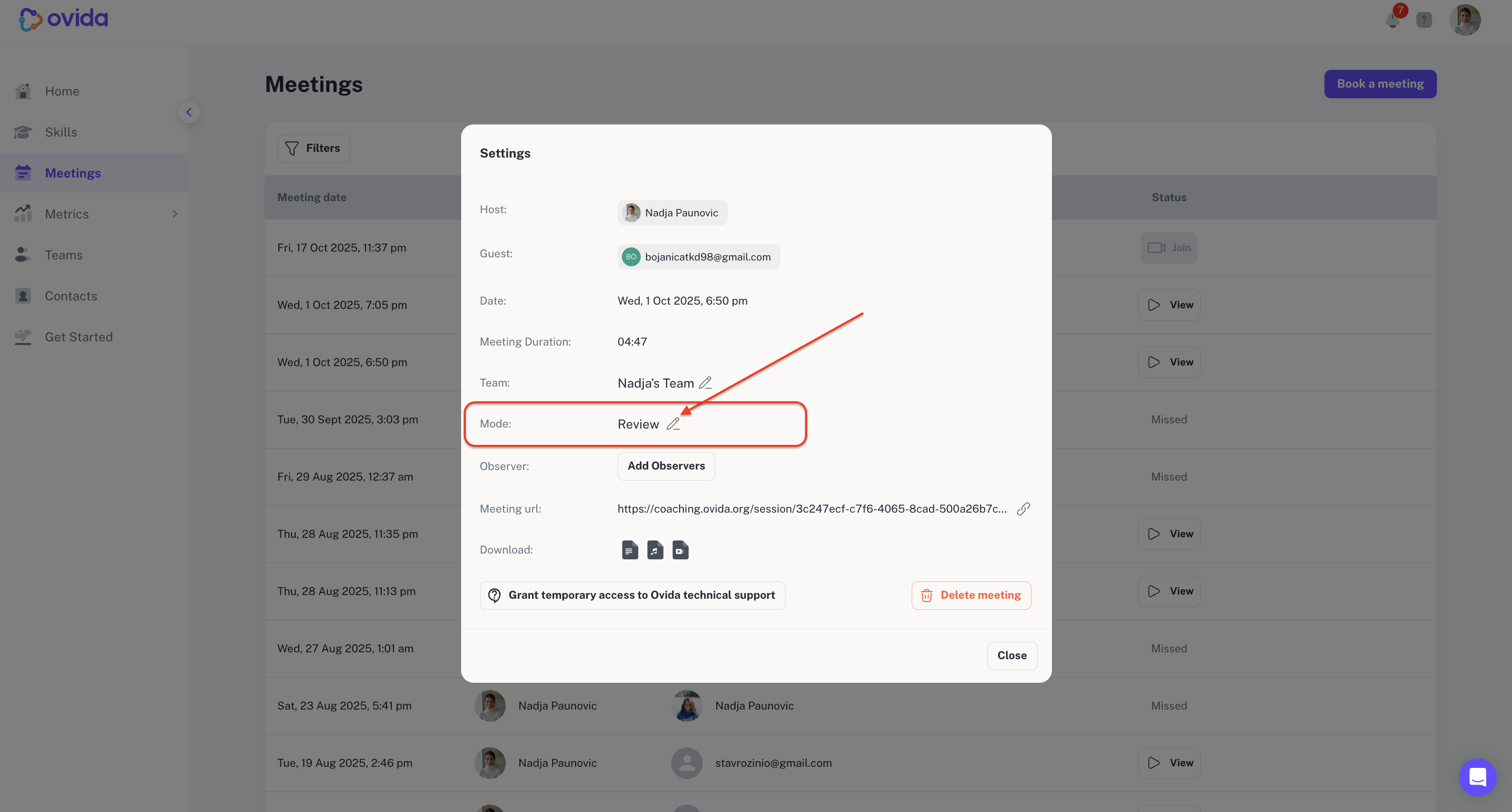
Click the edit icon next to the Mode.
Click each mode to read its description, then Change Mode to confirm.
⚠ Changing the mode changes who can see your comments and moments. If you've already added comments or moments to a meeting, switching to Train mode could expose them to participants who couldn't see them before. Change mode with care.