How do I download a meeting's transcript, audio, or video?
Last updated: September 1, 2026
Download the transcript, audio, or video files for a meeting, subject to your organisation's permissions and the meeting mode.
For every meeting, you can download three files separately:
A high-accuracy transcript
The original meeting audio
The original meeting video
Whether each file is available to download depends on two things: your organisation's download permissions (set by the Ovida admin), and the meeting mode (Review or Train).
Here's a video guide for this article.
How to download
Go to the Meetings page.
Click the settings icon next to the meeting.
From the Download column, click the file type you want.
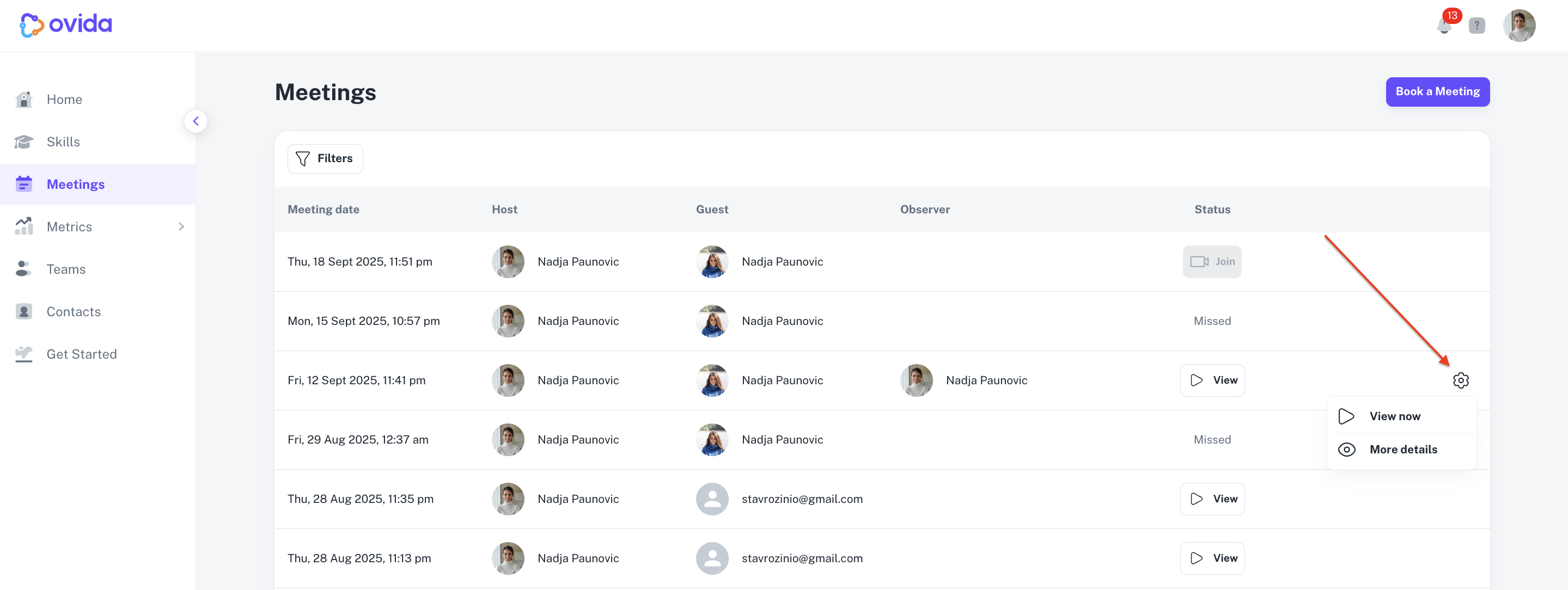
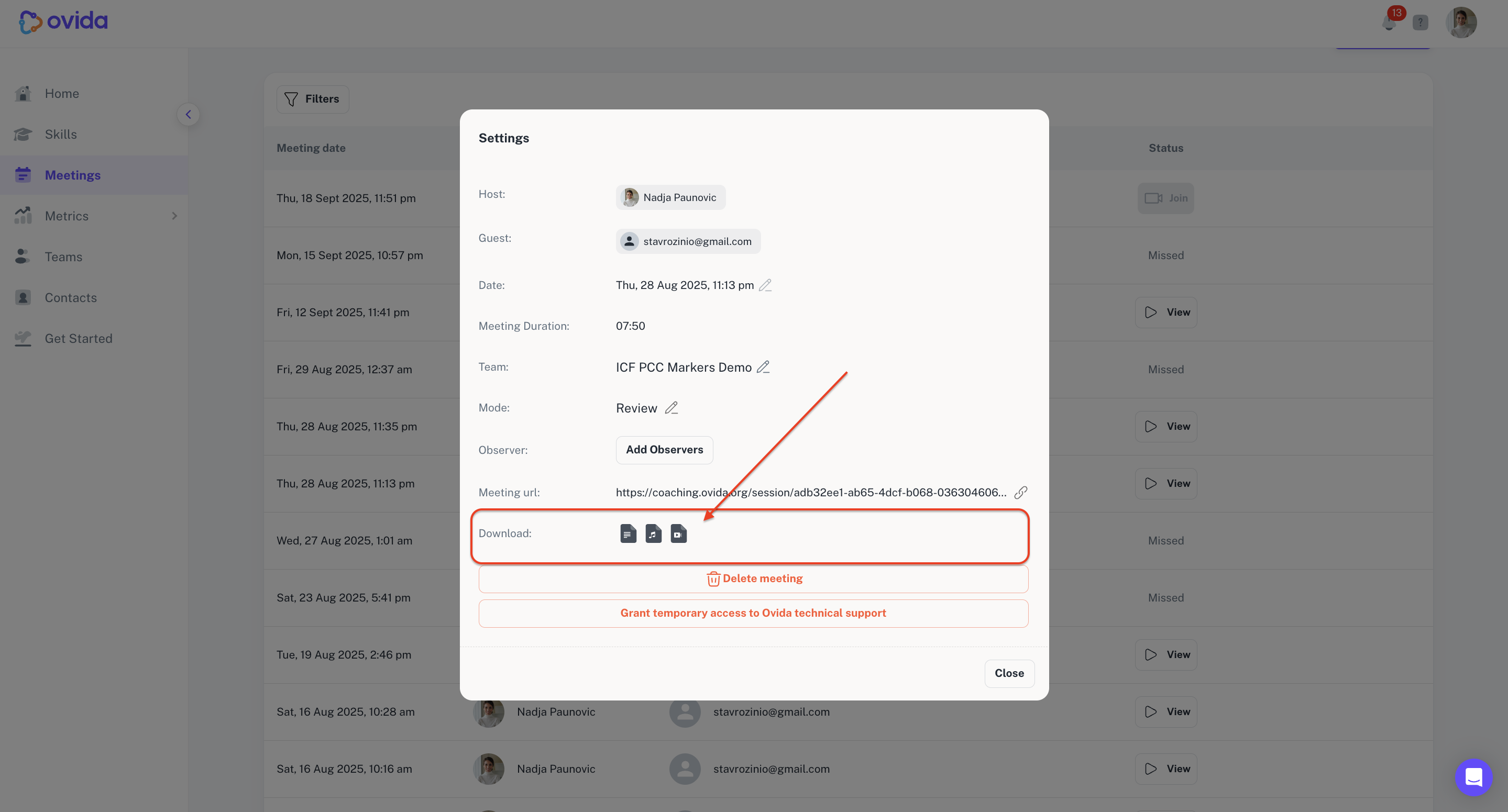
If a download is disabled, the icon is greyed out. Hovering shows: "Download is disabled by your organisation."
Who can download
Review mode
Only the meeting host can download files. This protects client privacy, since the host has obtained consent before recording. Clients in Review mode don't have access to moments, comments, or observer discussions.
If you were the guest in a Review-mode meeting and want a copy of the files, ask the host to download and share them with you.
Train mode
Everyone connected to the meeting can download files: host, guest, and observers. Commonly used when the guest is a peer (training scenarios).
⚠ In Train mode, the guest has access to all meeting data, including comments between the host and observer. Don't use Train mode if your guest is a real client expecting confidentiality.
Organisation-level controls
Your organisation's Ovida admin can turn downloads on or off across the whole organisation:
Audio and video downloads can be disabled organisation-wide.
Transcript downloads can be disabled organisation-wide.
Observer download access is off by default. The admin can grant observers download access across all teams.
To change any of these settings, the Ovida admin can contact support@ovida.org.