How do I switch between organizations in Ovida?
Last updated: September 30, 2026
Open the menu on the Ovida logo at the top-left and choose an organization under SWITCH WORKSPACE.
If you belong to more than one organization, Ovida shows you one organization at a time. The teams, meetings, skills and settings on screen always belong to the organization you have chosen.
Switch organization
Select the Ovida logo at the top-left of the screen.
Under SWITCH WORKSPACE, find the organization you want. Hover over it to see its web address.
Select the organization.
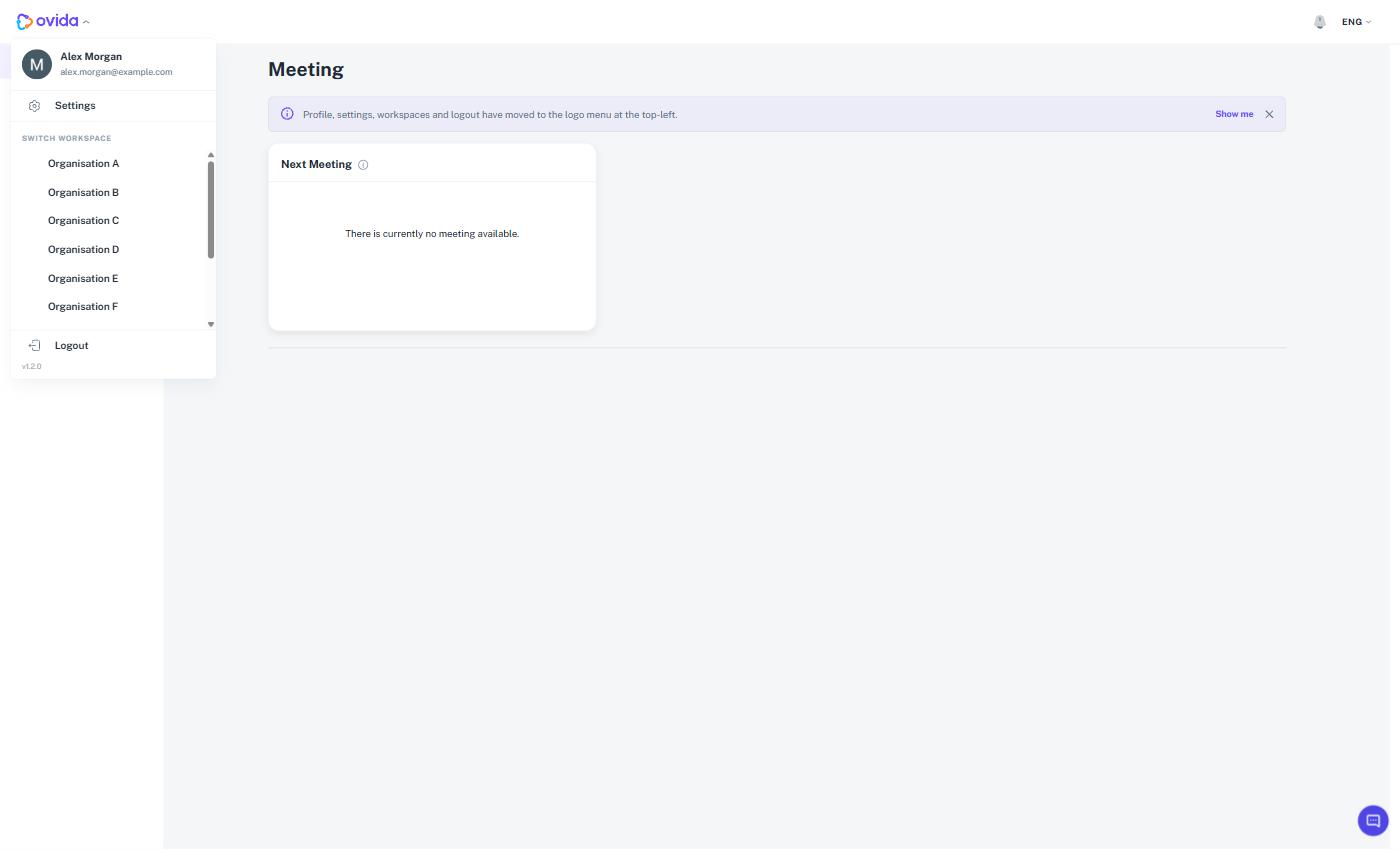
If you are on a list or settings screen, you stay on that screen and its contents change. If you are on a specific skill, meeting or relationship, Ovida takes you to the Home page, because that item belongs to the previous organization. If an organization uses a different web address, Ovida opens that address on its Home page, and you do not need to sign in again.
⚠ If you have unsaved changes or a roleplay in progress, Ovida asks you to confirm before it switches.
When Ovida asks you to choose
If you belong to several organizations and have not chosen one yet, for example after signing in on a new browser, Ovida shows a page listing your organizations. Each card shows the organization name, logo and web address. Select one to continue. If you signed in with the wrong account, select Not your account? Log out at the bottom of the page.
Common questions
Why do I not see a workspace list? You belong to one organization only, so there is nothing to switch.
What is the Default workspace? It appears if you belong to a team that is not part of an organization, such as a personal team.
Where did Settings and Log out go? They are in the same menu. Your name, email, Settings, the workspace list and Log out all sit under the Ovida logo.
I do not see an organization I expected. Ask a team owner or admin to check that you have been added, or email support@ovida.org.