How do I run an AI roleplay in Skills?
Last updated: August 20, 2026
A roleplay lets you rehearse a conversation with an AI partner tuned to a scenario. Start one from a Skill, or from a real moment in one of your meetings.
Ways to start a roleplay
There are two entry points, and both feed into the same practice session.
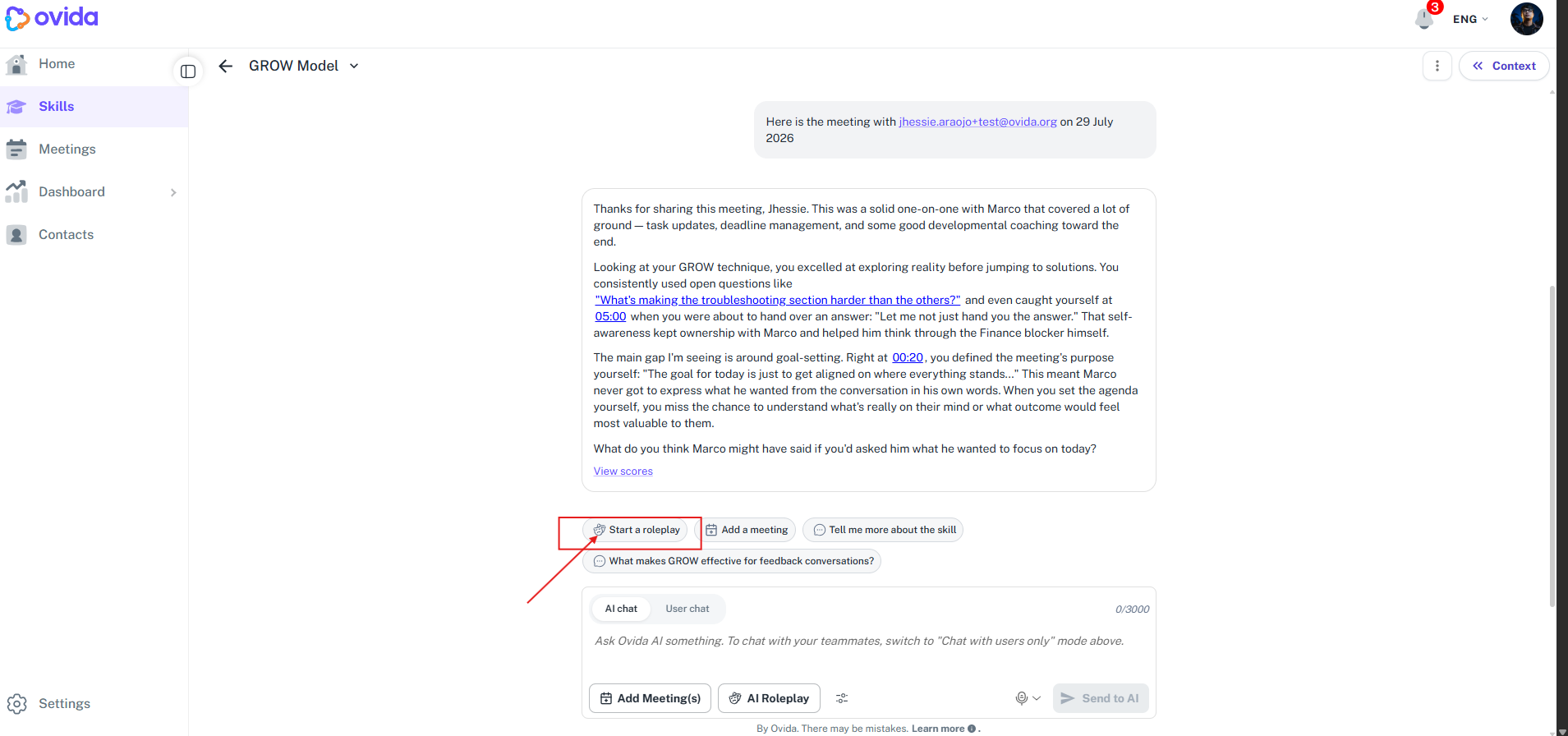
From a Skill. Open the Skill and choose to start a roleplay. You’ll pick the setup yourself.
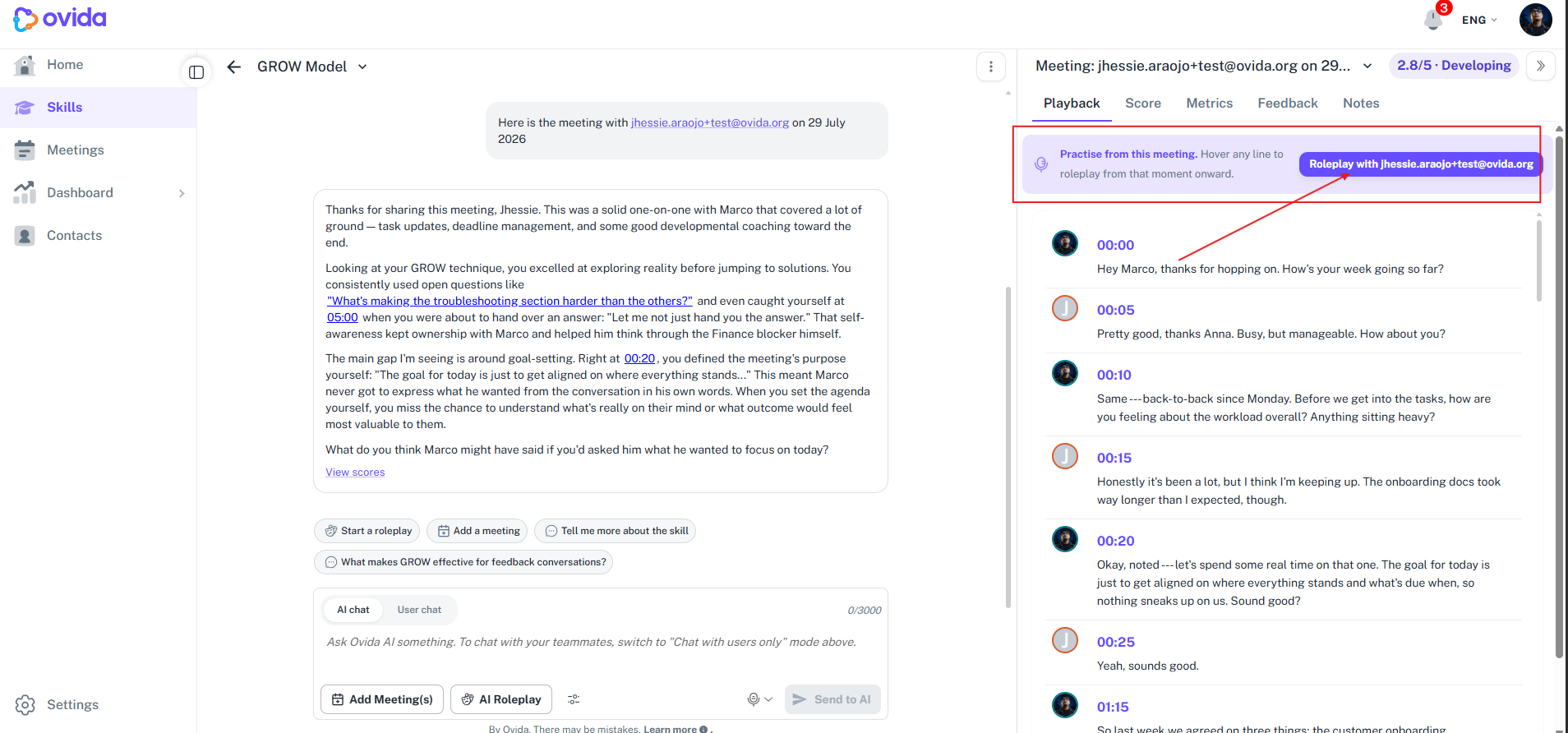
From a moment in a meeting. Open a meeting transcript and, on the line you want to rehearse, choose Roleplay from here. The roleplay is seeded with the conversation up to and including that moment, so you can try a different reply from that point onward.
From a person in a meeting. Choose to roleplay with someone you met with, and set up the practice around them. You can build it from that meeting or describe your own situation.
Set up a roleplay from a Skill
When you start a roleplay from a Skill, a setup screen opens first. Choose:
Practice type. Perform the skill yourself, or watch the AI demonstrate it.
Mode. Voice or Text/chat.
Persona. For example, "The Contrarian" or "The Sensitive Underperformer".
Scenario. Describe your own, or use one of the pre-generated options.
Then start the session.
Set up a roleplay from a meeting moment
When you launch from Roleplay from here on a meeting transcript, the setup screen opens with several choices already fixed:
The source is the meeting you’re in, at the point you selected.
The persona matches the person you were speaking with, and your practice partner uses their name.
The mode is Practice.
Scenario seed options are hidden. You’ll see a public description of the scenario for context.
Review the scenario description, choose Voice or Text/chat, and start.
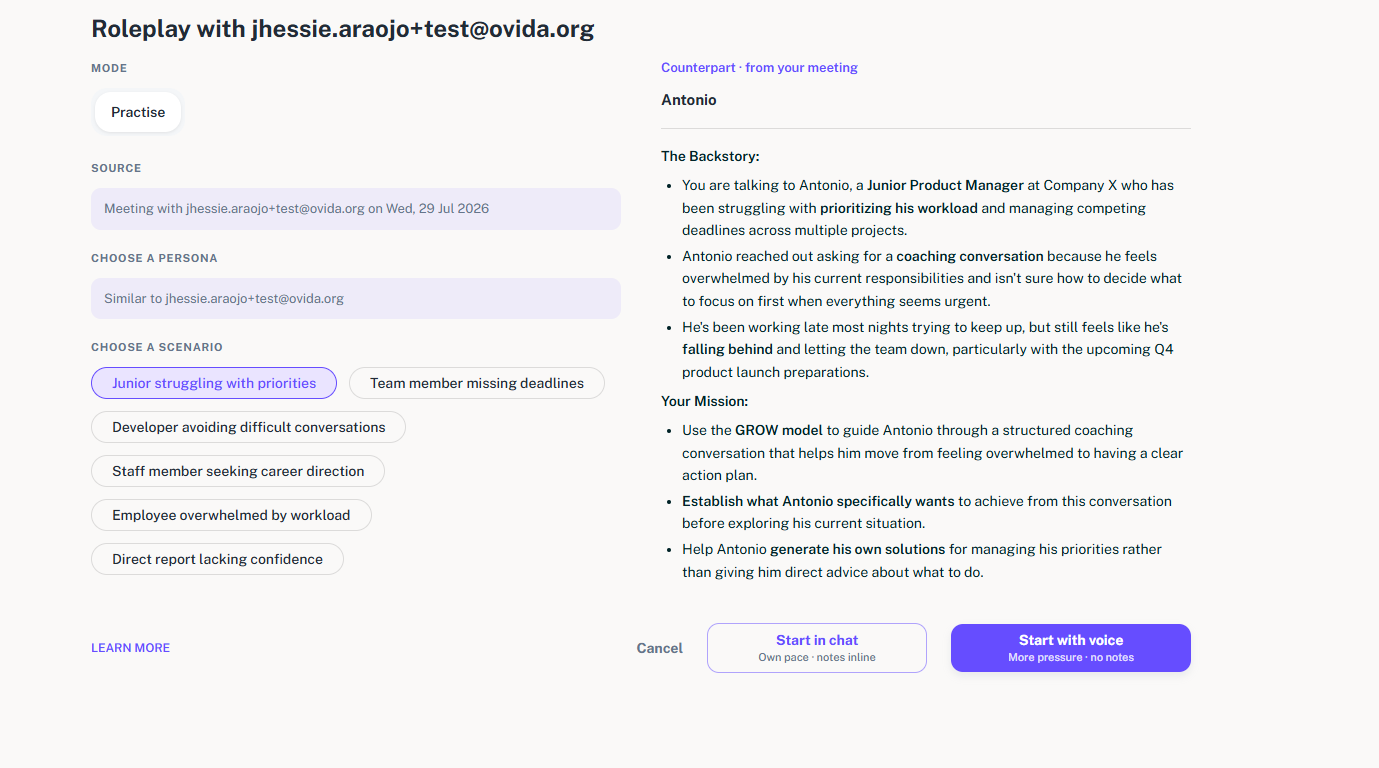
Set up a roleplay with someone from a meeting
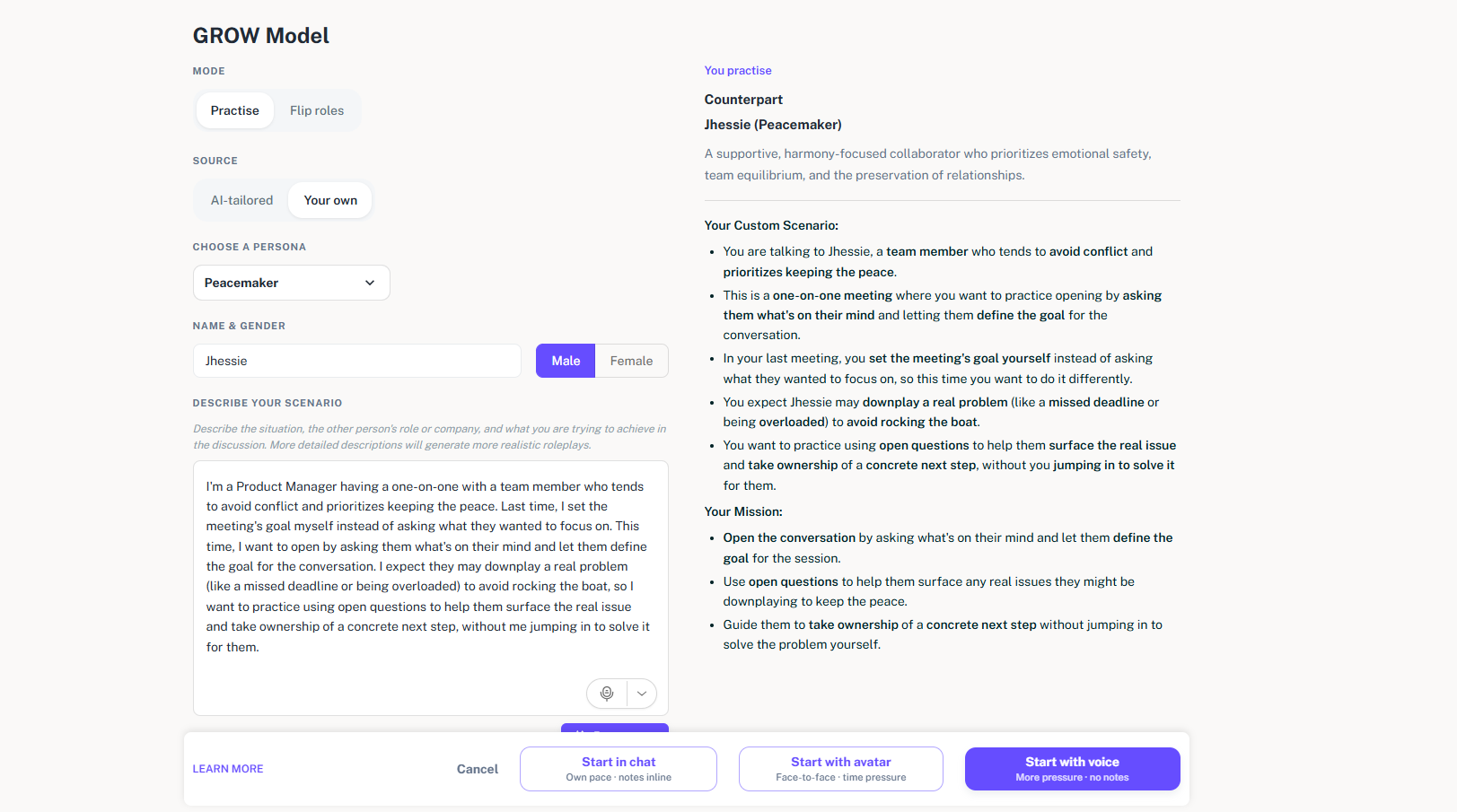
When you start a roleplay with a person from one of your meetings, the setup screen is titled with that person's name, and your practice partner uses it too.
Choose:
Source. From your meeting builds the practice from the conversation you had. Your own lets you describe a different situation. If you launched from a point in a meeting transcript, only From your meeting is offered.
Choose a persona. The default is a persona similar to the person you met with.
Character gender. This sets the name and voice of your practice partner. It is required.
Describe your scenario, if you chose Your own. Set out the situation, the other person's role or company, and what you are trying to achieve. More detail produces a more realistic roleplay.
Then select Generate to build the scenario, and start the session.
Tip: if the meeting you are practising from was only part of the picture, choose Your own and describe the wider situation. The persona stays close to the person you met with either way.
During the roleplay
Speak or type as you would in a real conversation. The AI partner responds in character, using the persona and context you set.
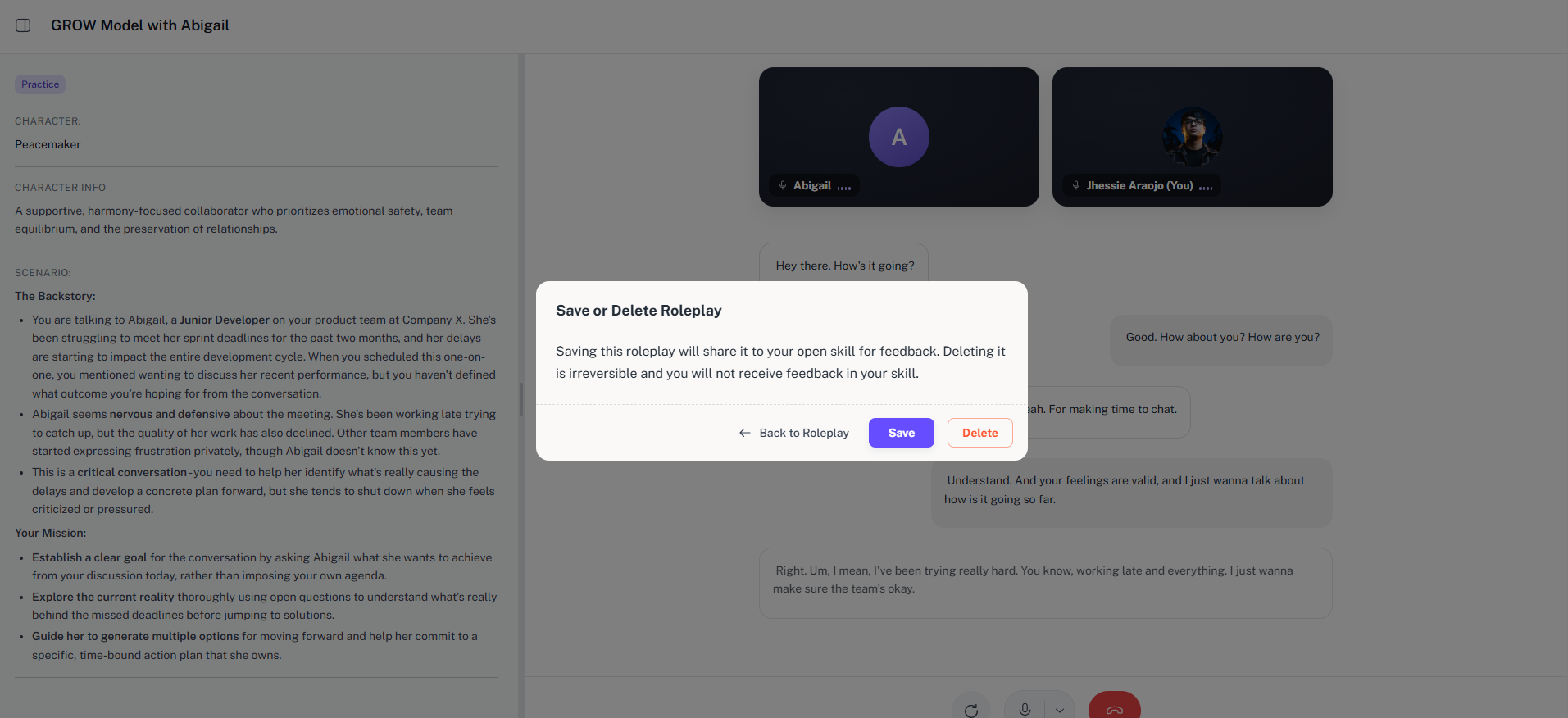
The interface looks like a small video call rather than a chat window. Use the on-screen controls to mute yourself or end the session.
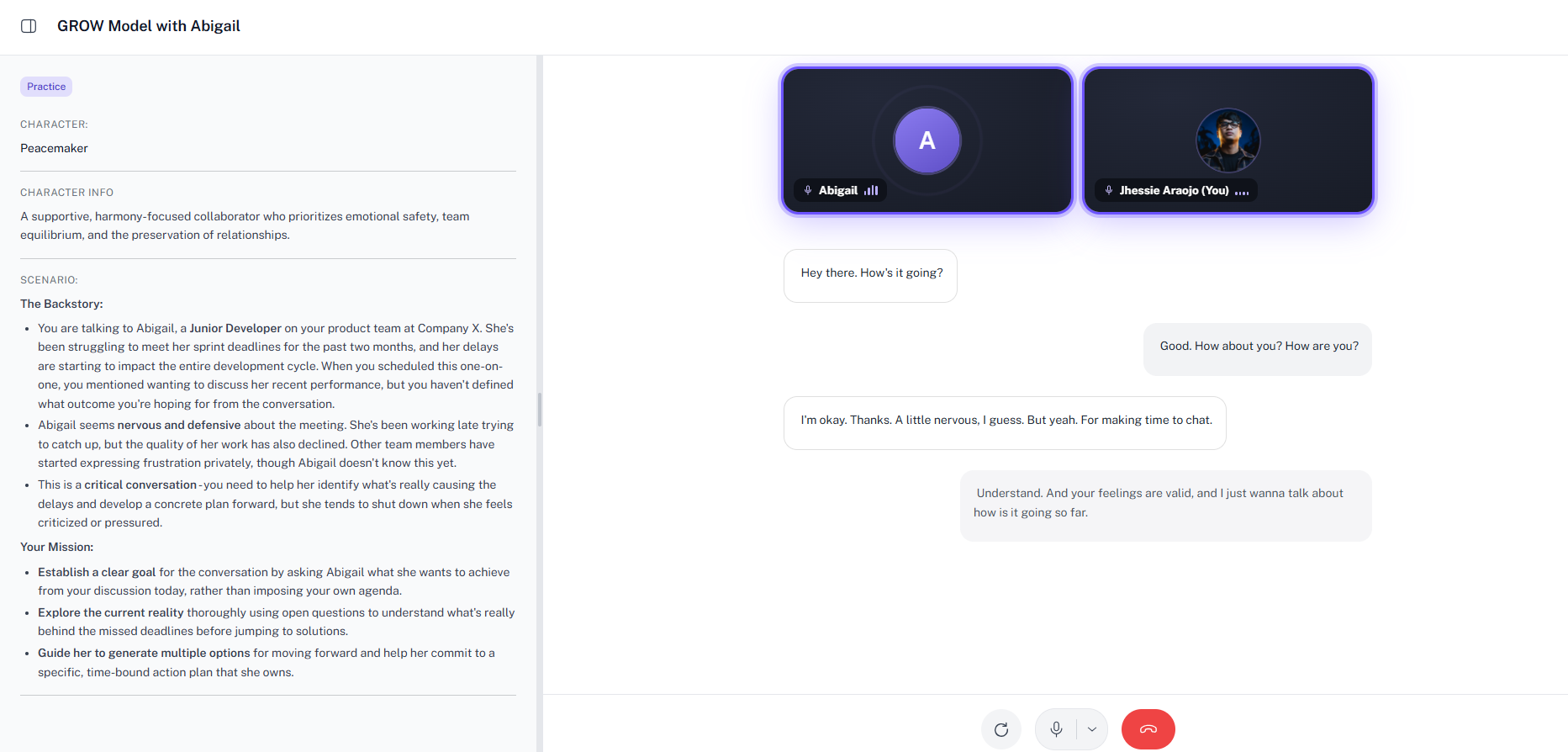
Start over during a session
Redo restarts the current roleplay from the beginning with the same setup, so you can try the same conversation again.
On a meeting-seeded roleplay, use Roleplay on the meeting to start a fresh session with no history
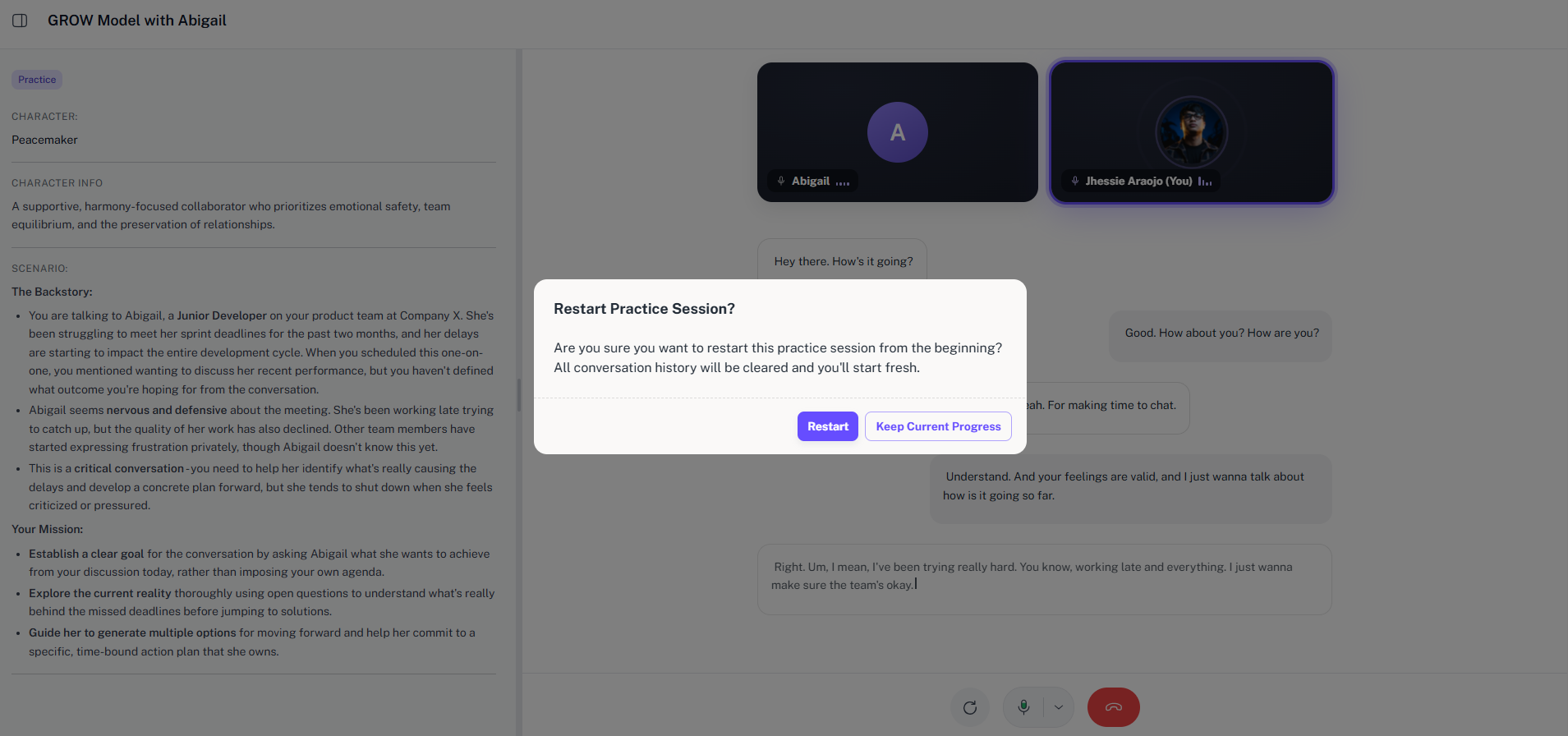
After the roleplay
When you finish, choose to save or delete the session. Saving lets the AI Skills Agent review the transcript and give you feedback the next time you open the Skill. Deleting throws it away.
💡 Tip: try the same moment three times using Redo. Small changes in wording show up quickly when the setup is identical.