How do I set up two-factor authentication (2FA)?
Last updated: May 25, 2026
2FA adds a one-time password (OTP) step to your login, so your account stays safe even if your password is compromised.
If your organisation has 2FA enabled, you'll need a supported authenticator app to sign in. We support Google Authenticator, Authy, and Microsoft Authenticator.
First-time setup
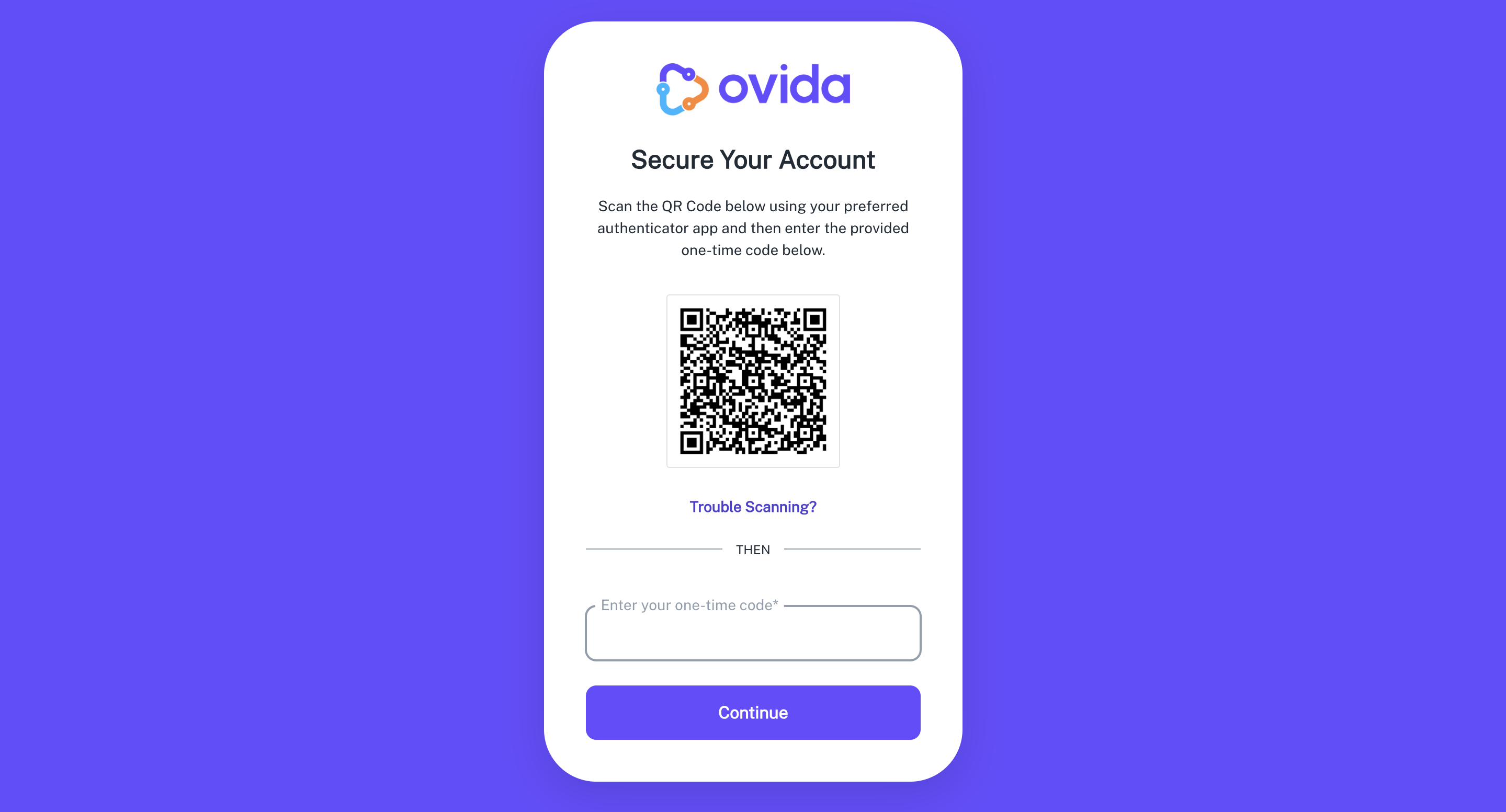
On your first login after 2FA is enabled, you'll see a QR code on screen. Open your authenticator app and scan the code to register your Ovida account.
Logging in once 2FA is set up
Enter your email and password as usual.
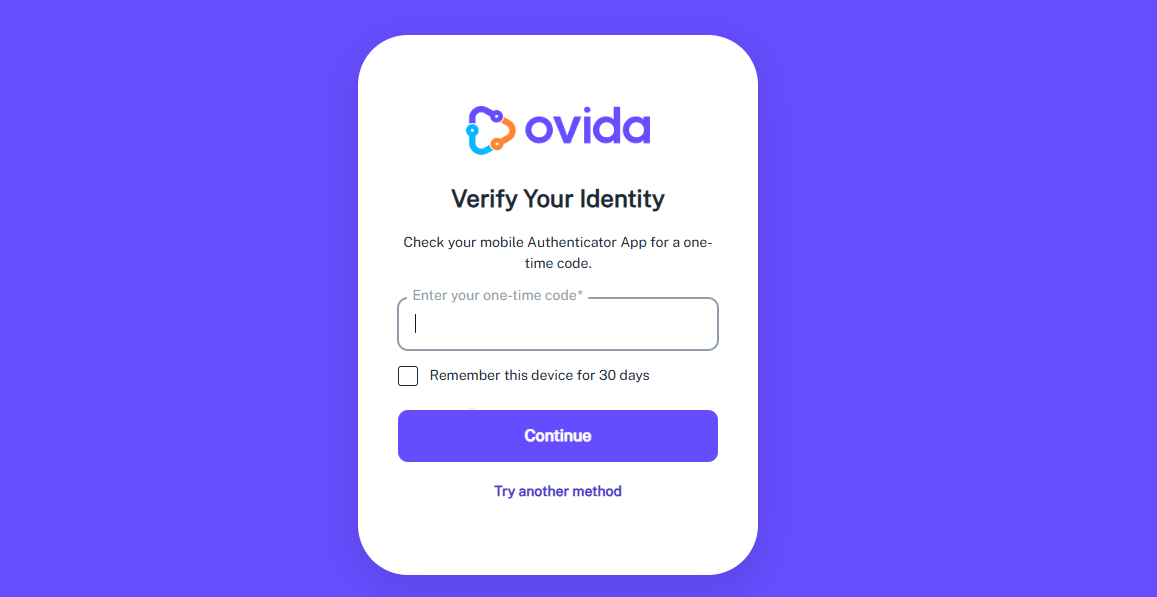
Open your authenticator app and find your current 6-digit OTP for Ovida.
Enter the OTP into the login screen.
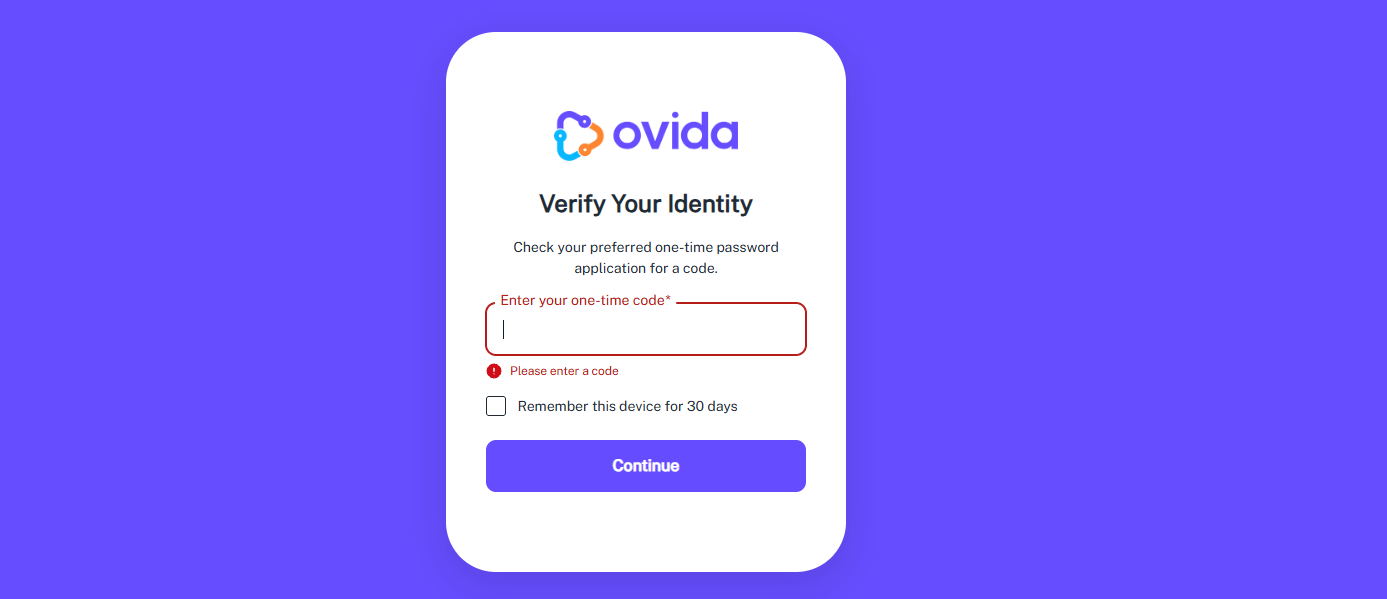
💡 Skip this step next time? Tick Remember this device for 30 days during login.
If you've lost access to your authenticator app
You can receive your OTP by email instead:
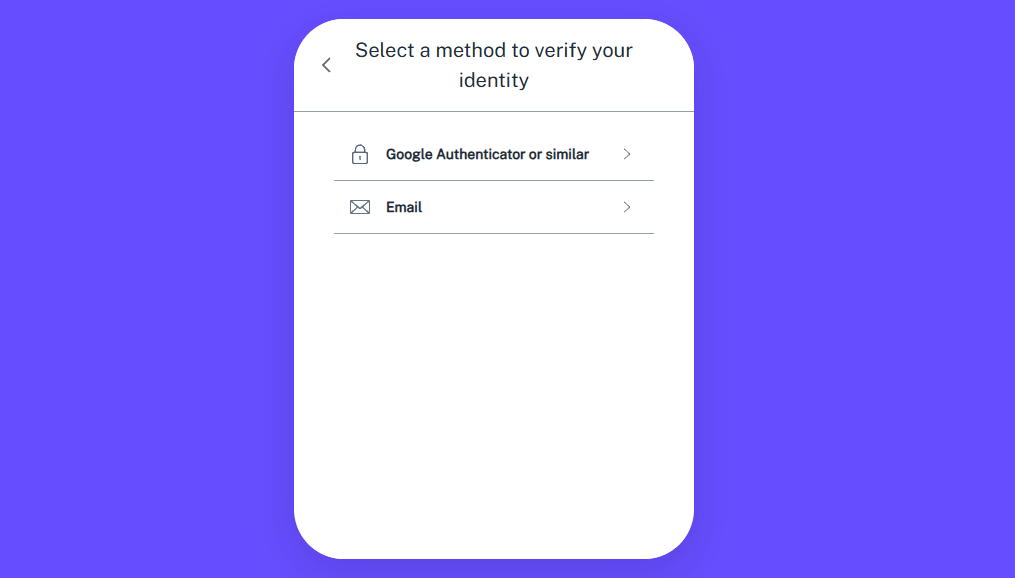
Click Try another method.
Select Email.
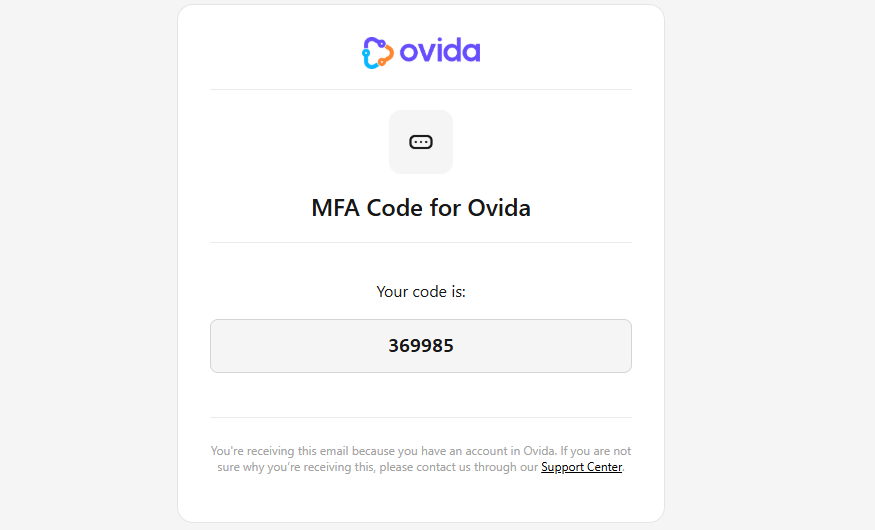
Check your email for the OTP.
Enter the OTP into the login screen.